BYF-Drive: the same folder your agent works in, now open to you
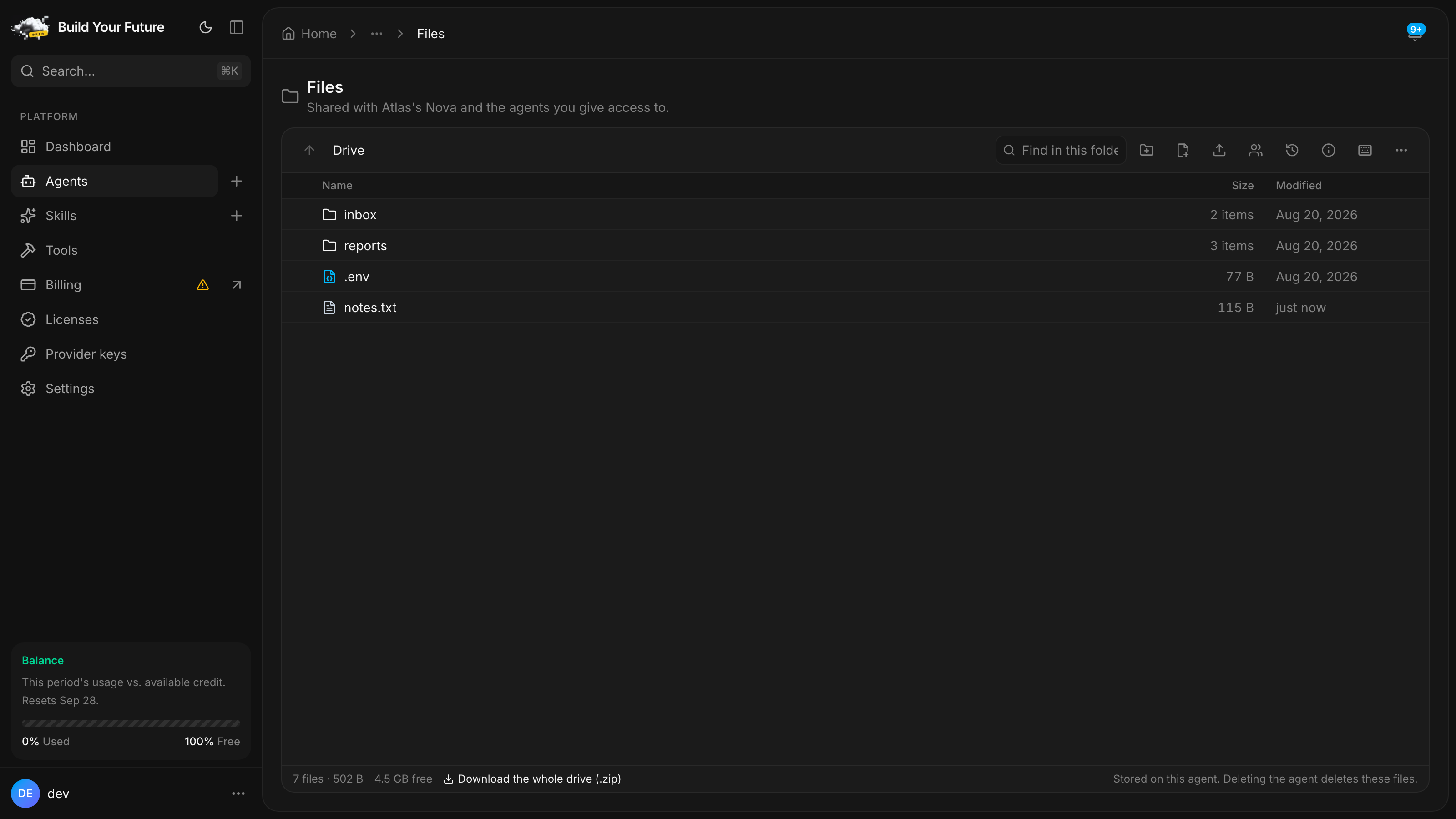
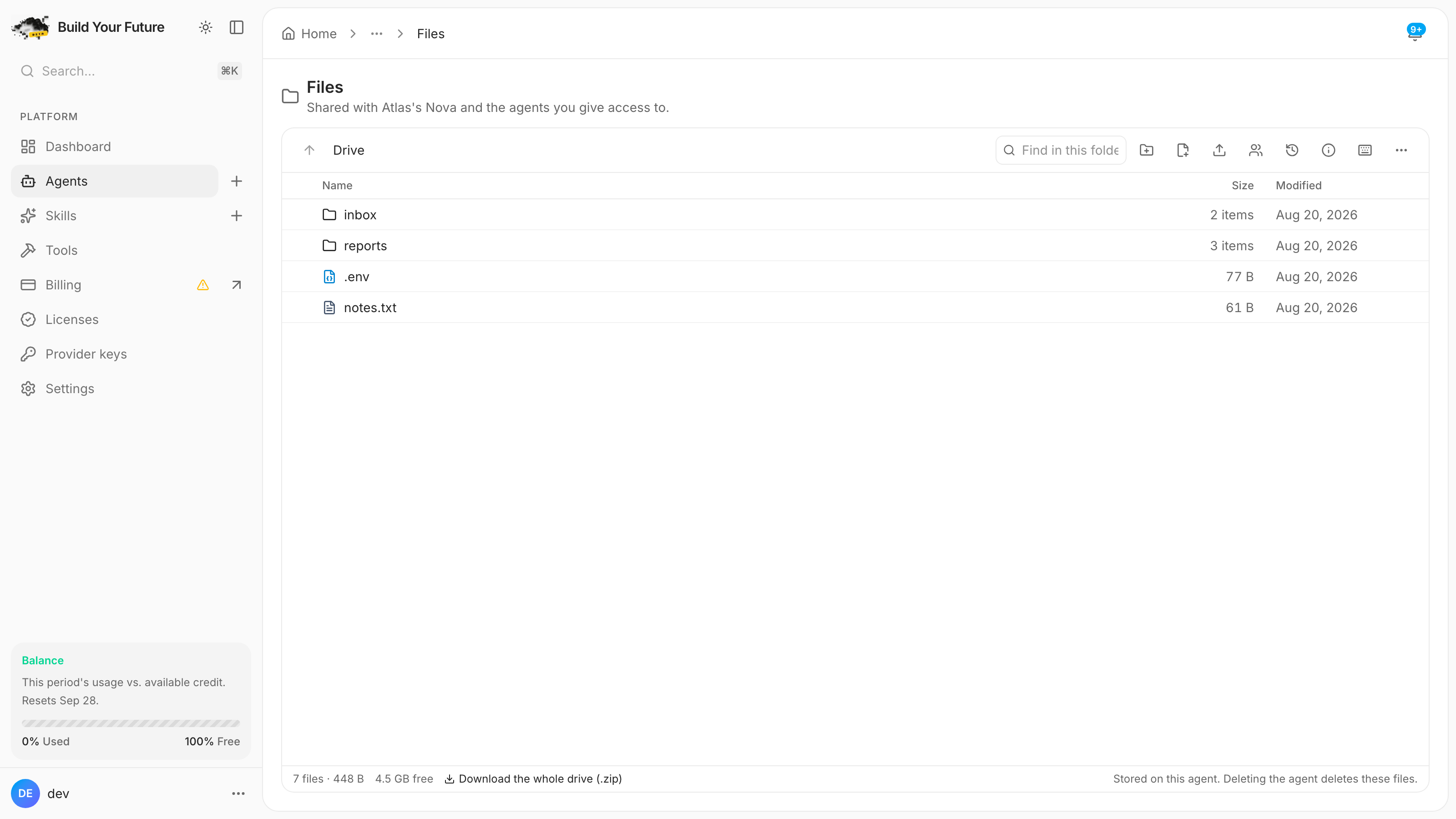
Nova writes files to a real disk. Now you open, edit, rename and share them in the same folder. No downloads, no second copy, nothing drifting out of date.
Every assistant that can make a file has the same hole in it. It writes the thing, hands you a download, and the conversation is over. You open it locally, change three numbers, and now there are two versions: the one on your disk and the one the assistant still thinks is real. Ask it to update the file and it updates its copy. Ask it to send the file and it sends the stale one.
The problem is not the download button. It is that you and your agent were never in the same folder.
BYF-Drive is one folder that both of you work in. Your Nova writes into it with its own file tools.
You browse it, edit it, rename it and share it from the dashboard. No import, no sync, no second copy
that drifts. When Nova saves reports/q3.csv and you fix a row and press ⌘S, that is one file, changed
twice.
Today that folder gets a workbench: right-click that works everywhere, drag to move, arrow keys, a viewer and an editor, links you can revoke, and a history that names who touched what.
You already have it. Open your Nova and click Files. That is the drive, and everything below is what you can now do to it.
What is actually on the other side
The drive is a real directory on your Nova's own volume. Not an object store we mirror, not rows in our database, not a bucket with a signed-URL service in front. One directory, on the machine your agent runs on.
That single decision buys three things:
Nova can work on the files, not just produce them. The drive is Nova's working root. A chart it renders with a shell command is a file you download a second later. A CSV you drag in is a file it can open in the same turn. Two separate roots would have meant copying between them and forever explaining which one is real.
Links come from your agent's own domain. A share is https://your-agent.example/d/<token>. Your Nova
serves it directly. No round trip through us, no expiring signature to renew, and it keeps working
exactly as long as your agent does.
Other agents in your mesh fetch with their own credentials. A member agent already proves who it is. It reads what a grant covers, and we are not in that path at all.
You cannot delete a Nova and lose its files by accident
Because the files live on the agent, deleting the agent takes them with it, so the delete dialog will not let that happen quietly. It loads the drive first, shows you the file count and the total size, hands you Download all files (.zip), and keeps the destructive button switched off until you have either taken the backup or ticked "I understand these files will be lost."
The explorer: one gesture, one meaning
The old file list had a single click that meant two things. The row selected, the filename opened, and neither one stopped the other. Opening a folder sometimes showed you the previous folder's contents. The keyboard did nothing at all.
v0.1 rebuilds the grid around one rule: every gesture has exactly one meaning, on mouse, on touch and on the keyboard.
| You do this | It does this |
|---|---|
| Click the filename | Opens it. A folder navigates; a file opens in the pane. |
| ⌘-click or middle-click the filename | New tab, at a link that goes straight back to that file. |
| Click anywhere else in the row | Selects that row. |
| ⌘/Ctrl-click | Adds to the selection. |
| Shift-click | Selects the range, in the order you are actually looking at: sorted and filtered. |
| Double-click (mouse) | Opens. A second way, not the only way. |
| Long-press (touch) | Enters selection mode, the way Files and Drive do. |
Right-click, the menu key, or the row's ⋯ | The same menu, from the same list, every time. |
| Drag a row onto a folder or a breadcrumb | Moves. Hold Alt/Option to copy. |
| Drag files in from your desktop | Uploads them into the folder you dropped on. |
| Click the empty space below the rows | Clears the selection. |
Getting files in has three routes: the Upload files button in the toolbar, dragging them in from your desktop, and Nova writing them itself. Dropping onto a folder row uploads into that folder, not into the one you happen to be looking at.
The filename is a real link, so "copy link address" and open-in-new-tab work the way they do on every other page on the internet. Its click target is the name cell minus a fixed strip at the end, so the open-zone does not shrink and grow with the length of the filename.
The menu is one list, and it never hides anything from you
Right-click, the row's ⋯, the selection bar's ⋯ and the ? shortcut overlay are all rendered from
one description of what the actions are. Nothing can exist in one place and be missing from another.
| Action | Shortcut |
|---|---|
| Open | ⏎ |
| Download | ⌘↓ |
| Rename (inline, in the row) | F2 |
| Duplicate here | |
| Cut · Copy · Paste | ⌘X ⌘C ⌘V |
| Move to… | |
| Copy link · Copy path · Get info | |
| Share link… · Give an agent access… | |
| History · Versions… | |
| Delete | ⌘⌫ |
Right-click the empty space instead, or the Folder actions button, and you get the menu for the folder you are in: New folder · New file · Upload files… · Download this folder (.zip) · Paste · Select all · Sort by · Refresh.
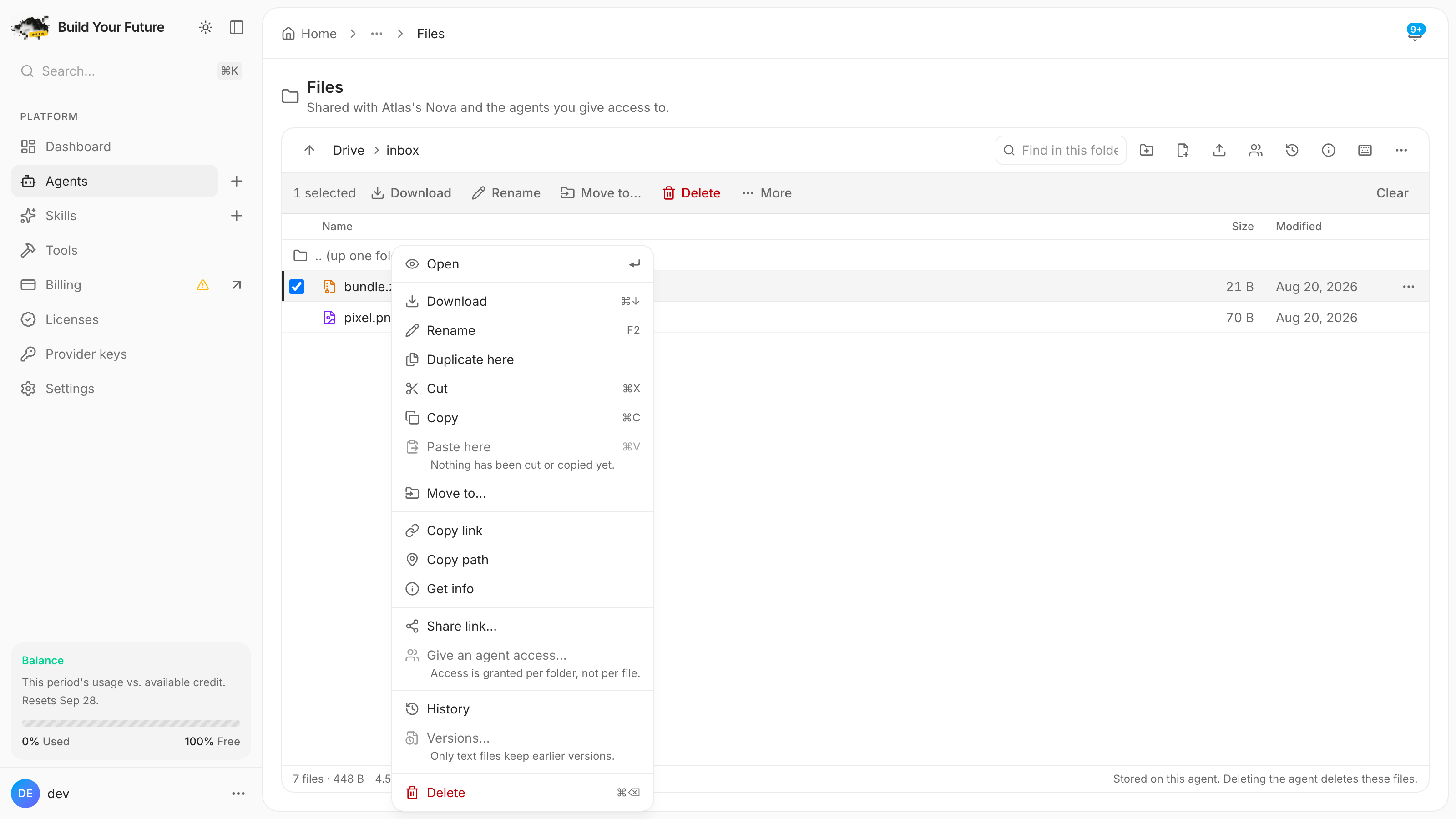
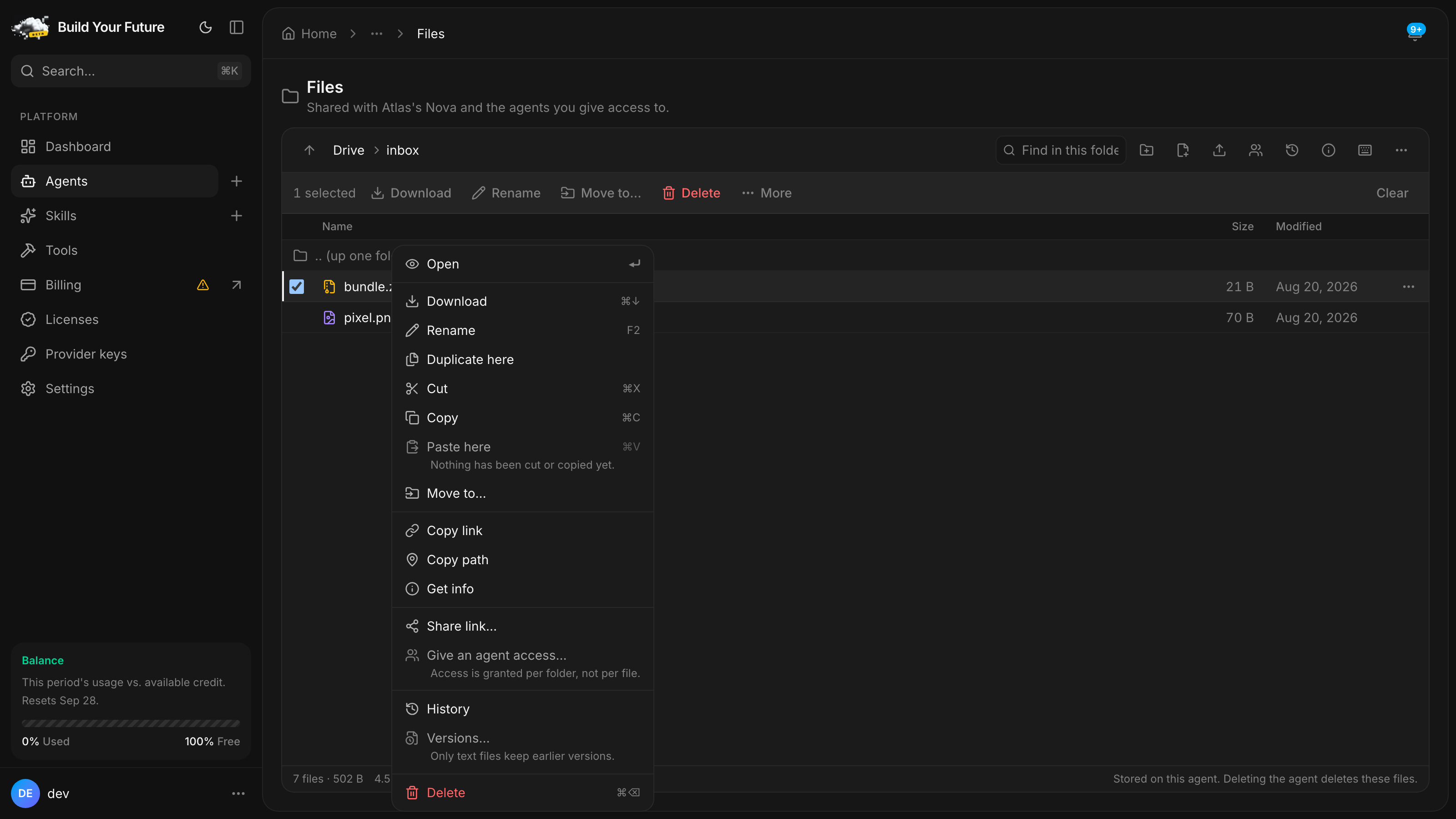
When an action cannot run, it is shown disabled with the reason, never quietly removed. Right-click a
.png and "Versions…" is greyed with a note that snapshots exist for text files. Right-click a file and
"Give an agent access…" tells you access is granted per folder. A menu that changes shape between two
similar files teaches you nothing; a menu that explains itself teaches you the rules.
The keyboard is the whole thing
Arrows move. Enter opens. F2 renames in place. ⌘⌫ deletes. ⌘X ⌘C ⌘V cut, copy and paste.
⌘Z undoes. ⌘↑ goes up a folder. ⌘↓ downloads. / jumps to Find. ? lists all of it.
Two absences are deliberate. ⌘F is never intercepted, because overriding the browser's own find is not
ours to do. And plain Backspace does not navigate up, because on a Mac keyboard the key labelled Delete
is Backspace, and a file manager that deletes when you meant "back" is a file manager you stop trusting.
Selecting things is visible, not implied
The selected-row tint in the old list measured 1.06:1 against an unselected row. That is not a subtle design flaw, it is invisible. Selection is now a 2px bar down the leading edge of the row, plus a checked checkbox, plus the announcement a screen reader reads out. The tint is a reinforcement, not the message.
The checkbox column is always there, empty until you use it, because a column that appears on your first click shifts every row sideways under the cursor mid-gesture.
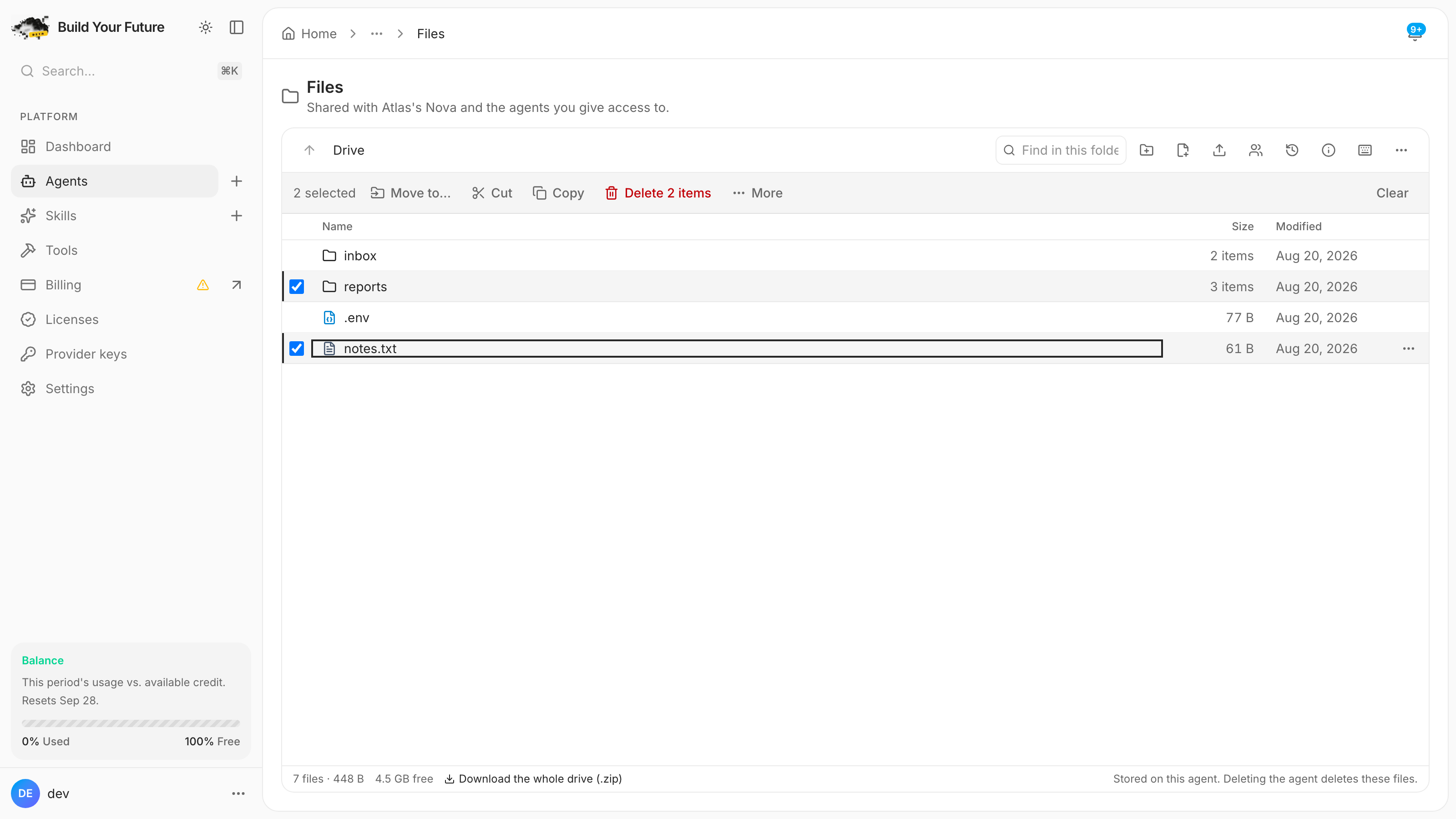
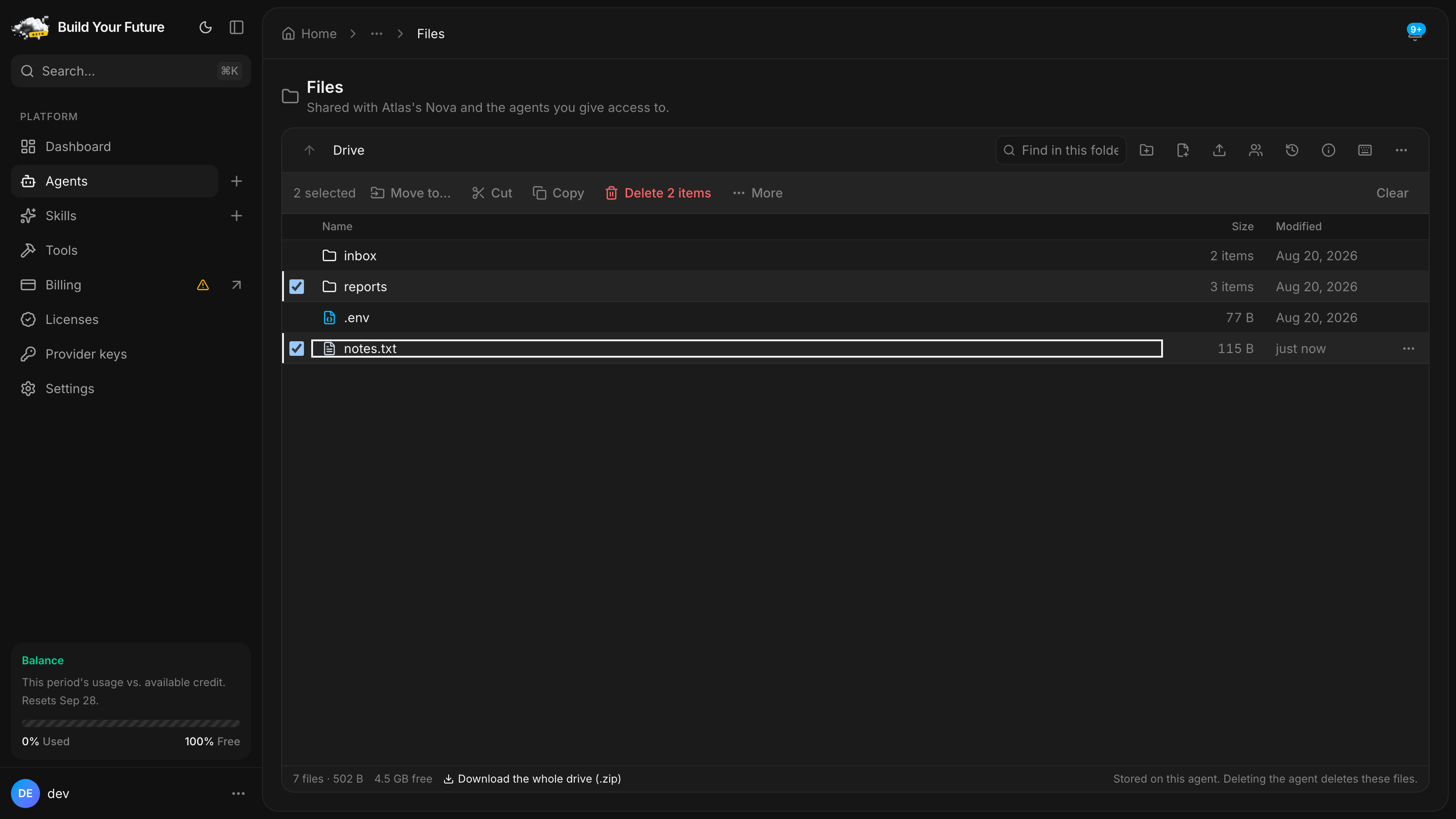
Select twelve files and act on them and it is one request, not twelve. When some of them fail you get the names: "Deleted 37 · 3 failed", expandable to exactly which three, with a Retry these 3 button. A bare number is useless on the one operation where partial failure is guaranteed.
Nothing destructive happens in silence
Every mutation offers an undo, or says in words that it cannot.
| What you did | What undo does |
|---|---|
| Move, rename, cut-and-paste | Moves it back. |
| New folder, new file | Deletes it. |
| Deleted a text file that has a snapshot | Restores the contents. |
| Deleted a folder, or a file with no snapshot | Nothing. The confirm dialog says so, with the count and the total size. |
That last row is the important one. The offer comes from a real check of what snapshots exist, taken before the delete, not guessed from the file's type and size. A file you uploaded once and never edited plausibly has no snapshot, and a button that promises an undo it cannot deliver is worse than no button.
The undo bar is not a timer. ⌘Z does the same thing, the bar stays until your next change or until you
dismiss it, and if the undo itself fails it says so instead of disappearing.
The pane: look at anything, edit it safely
Click a file and it opens in a pane beside the list, not a modal on top of it. On a narrow screen it
becomes a full-screen dialog with a proper focus trap. ↑ and ↓ walk the pane through the folder. Hold
the key through thirty files and it fetches once, when your focus settles, not thirty times.
Images fit or go 1:1 with pan. Video and audio play with a scrubber that actually seeks, because range requests survive the whole path. Markdown renders. CSV and TSV become a table, parsed incrementally with row and byte caps so a 500 MB export does not take the tab down with it. Text and code get a line-number gutter. Anything unrecognised shows its first 4 KB with the control characters escaped, so an unknown binary is a look rather than a dead end.
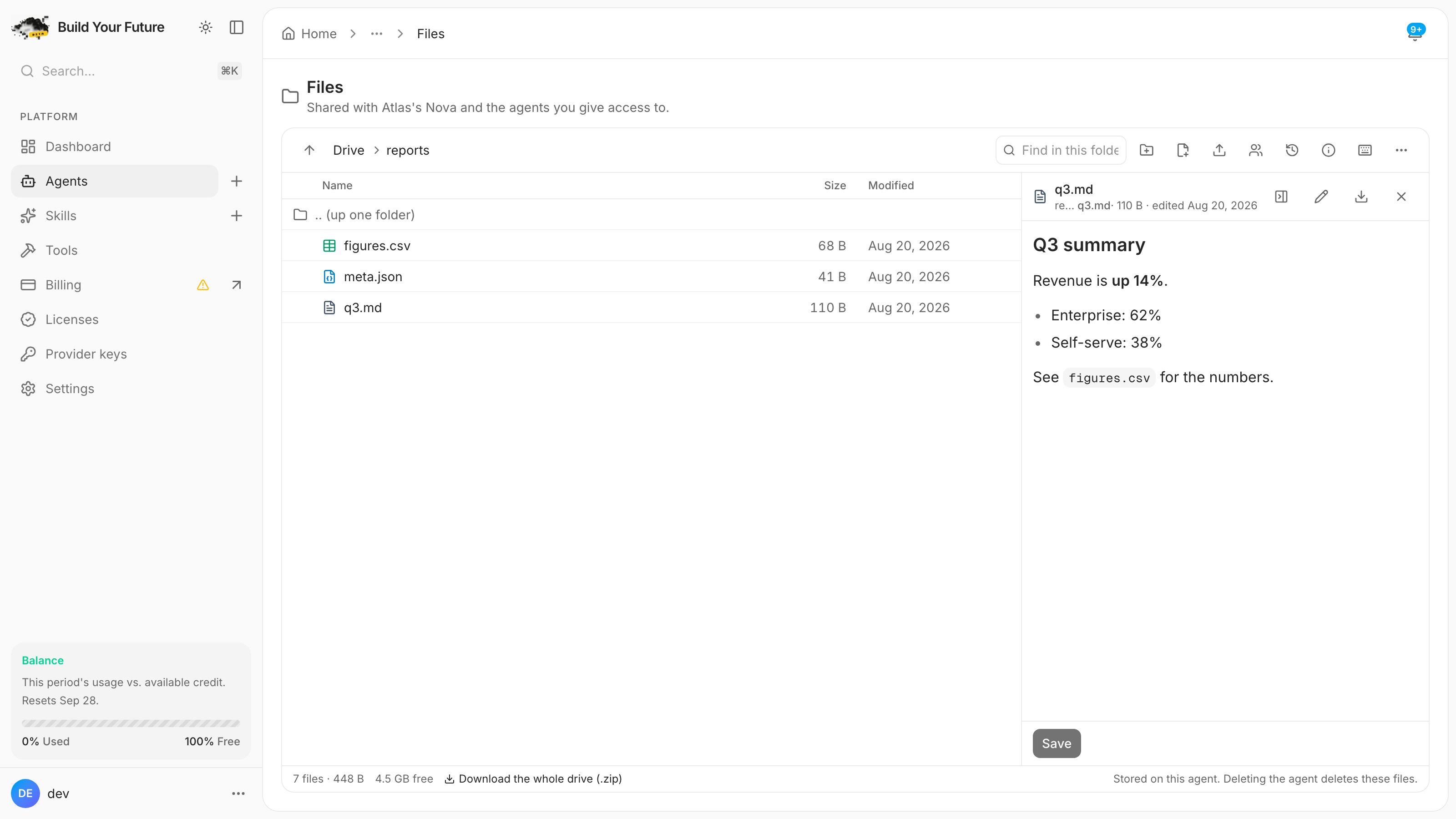
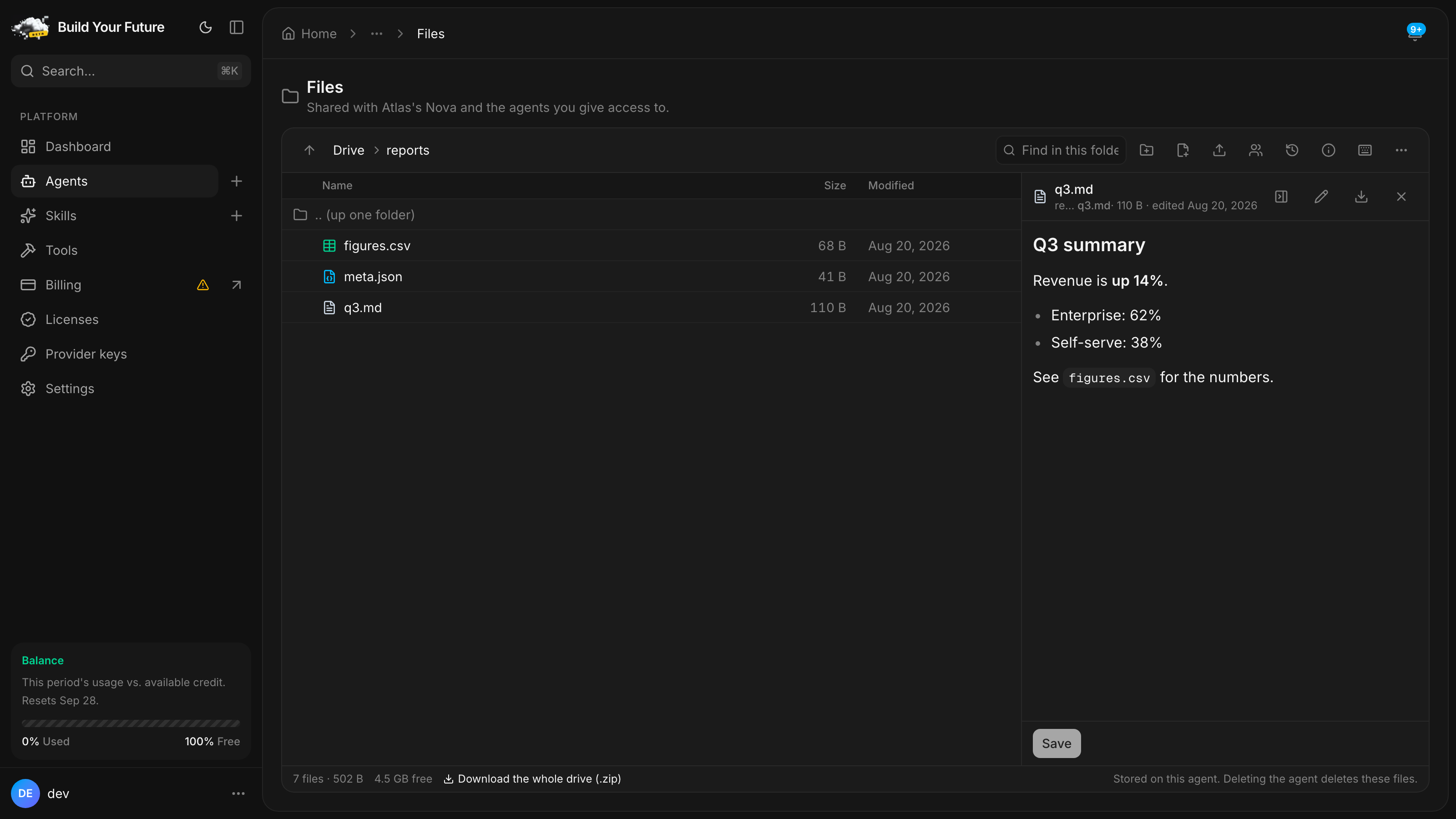
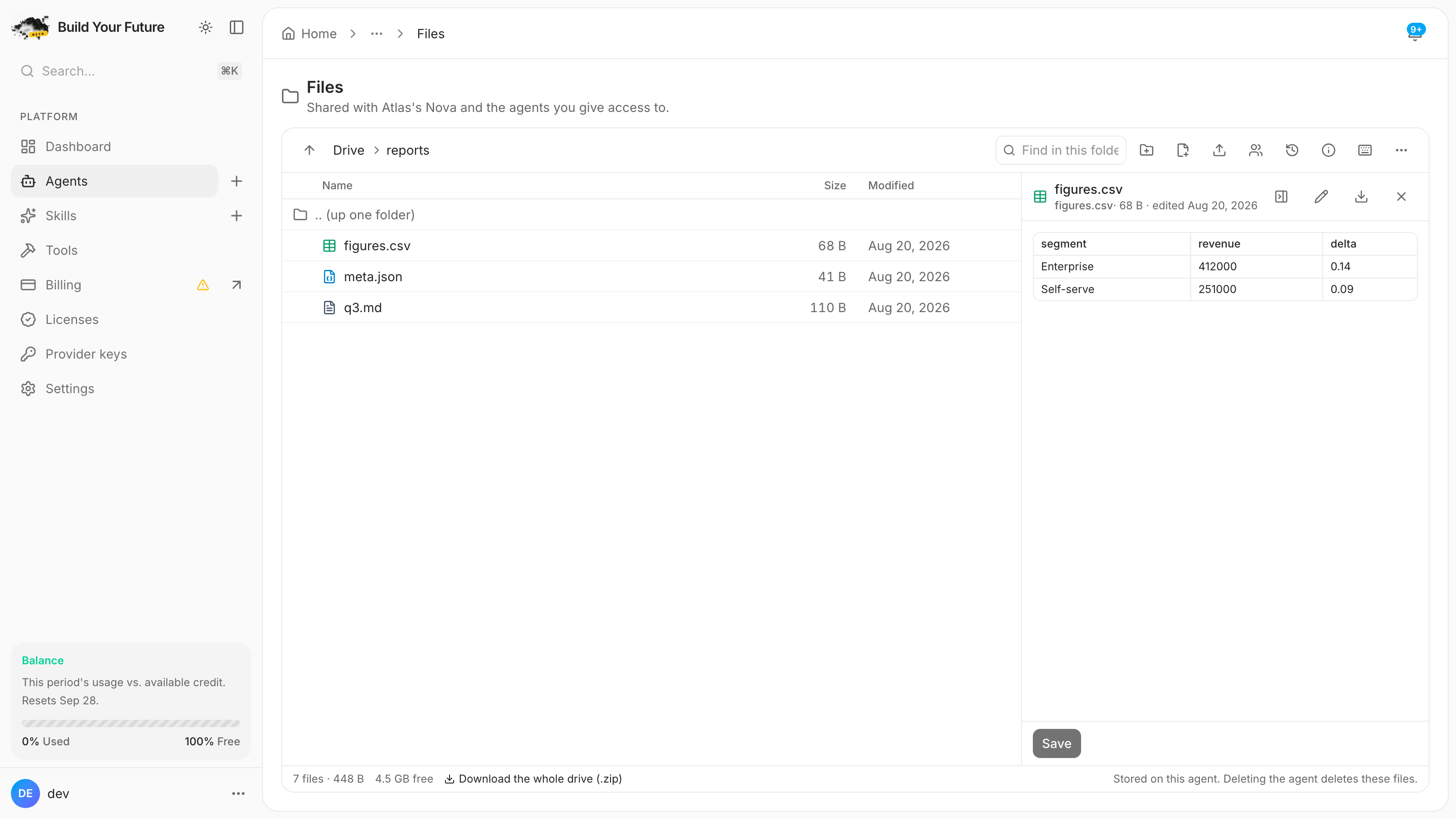
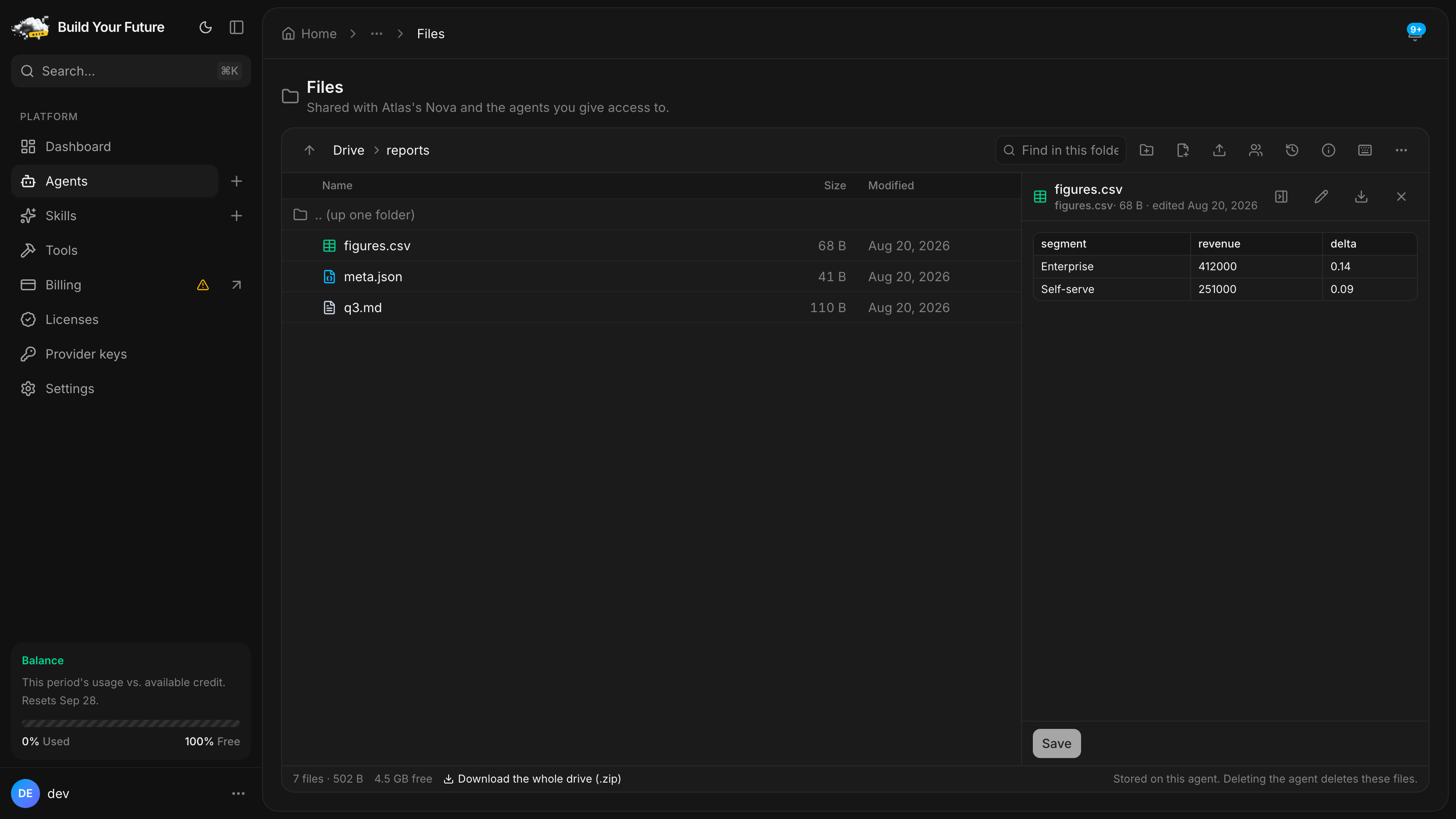
Editing is ⌘S. There is an "Unsaved changes" marker in the header, replaced by Saved · and the time
once the write lands. There is no
autosave, on purpose: this is a real file on a real disk that Nova may also be writing to, sitting
behind at most ten snapshots. Saving should be something you did, not something that happened.
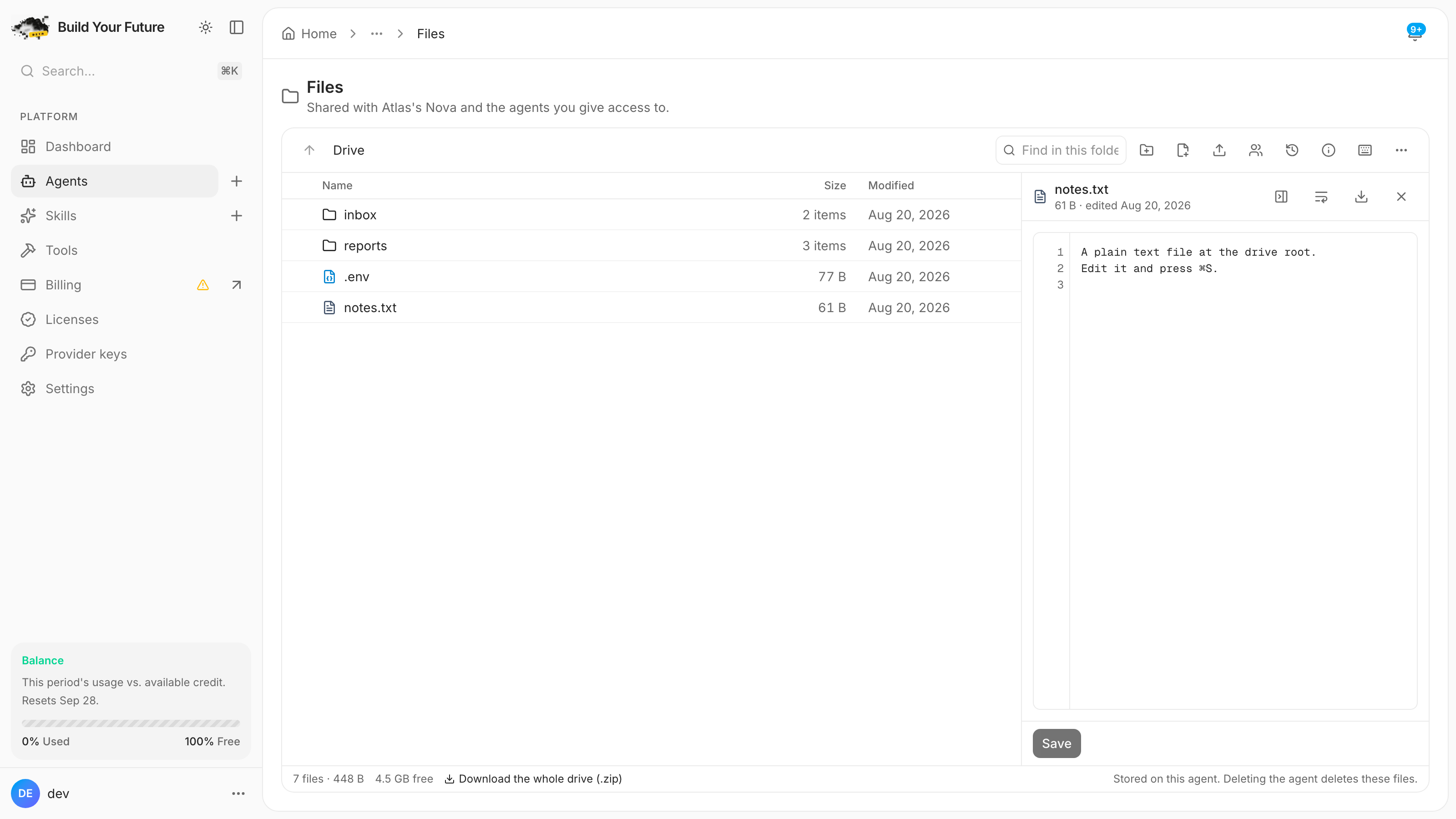
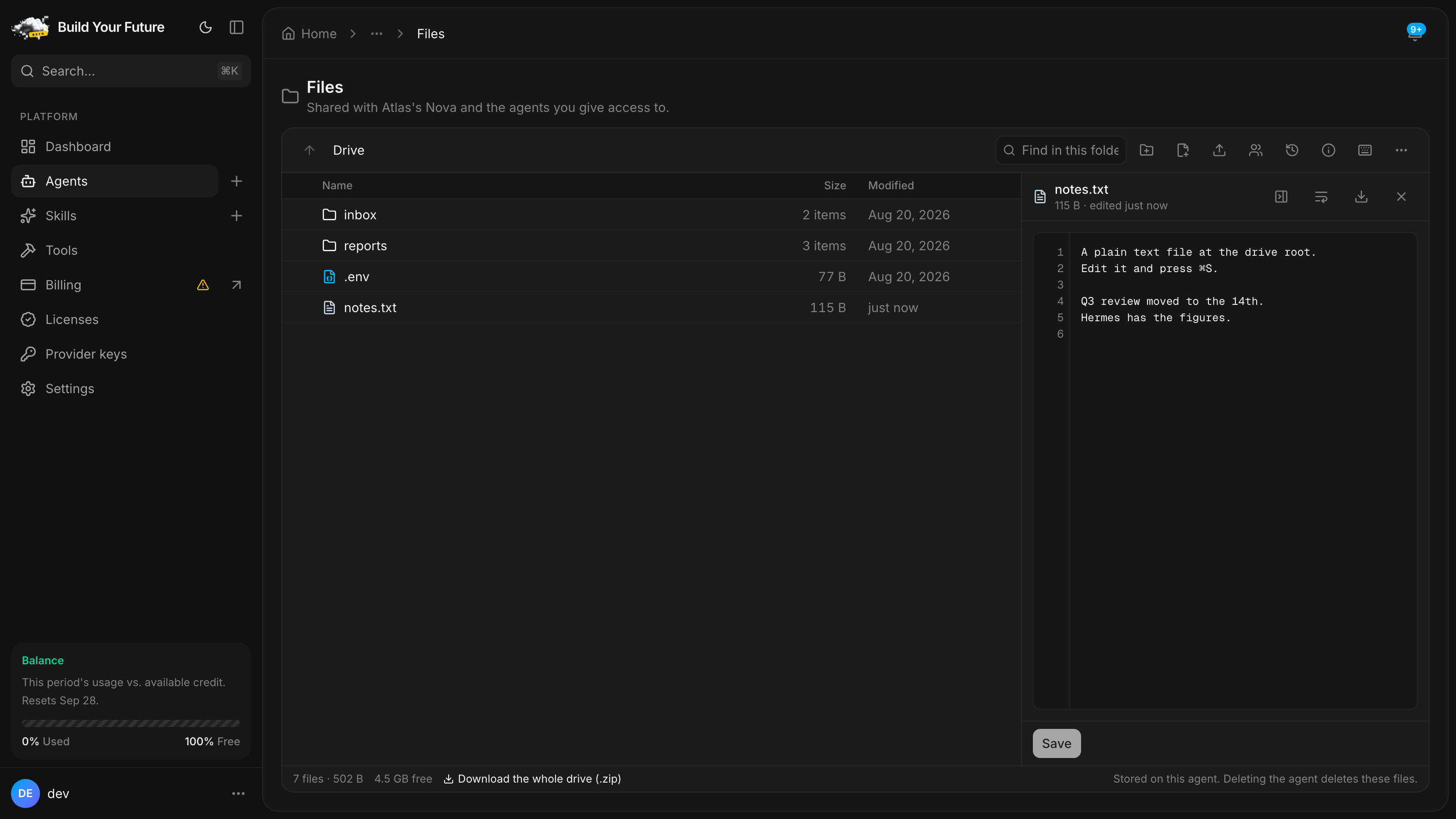
Four details in the editor are correctness, not polish:
- A byte-order mark is hidden while you read and preserved when you save. Otherwise
⌘Ssilently changes bytes you never looked at. - Windows line endings stay Windows line endings. A textarea normalises everything to LF; that would rewrite every line of a file you only opened to read. The pane detects the ending, restores it on save, and shows you which one it found.
- Bidirectional override characters render as visible escapes. Those are the characters behind Trojan Source: source code that reads one way to you and compiles another. In this editor they show up.
- The gutter disappears when soft-wrap is on. With wrapping, visual lines are not logical lines, and a column of numbers next to them is not misaligned, it is wrong.
Anything up to 2 MB edits freely, at the same ceiling the snapshot keeps, so every edit you make is an edit you can walk back. Between 256 KB and 2 MB it opens read-only with an Edit anyway for when you mean it. Past 2 MB you get the reader, and the file stays exactly as your agent left it.
And if Nova changed the file while you had it open, the save stops and asks: Reload theirs / Overwrite with mine / Download mine. Three real options, so a shared folder never quietly picks one for you.
The pane knows what is safe to open
Some file types download instead of opening, and that is the part doing the work.
Your drive holds files an agent fetched from the internet, files another agent wrote, and files anyone
with a link uploaded into inbox/. Rendering that as a web page on a domain that holds your session
would be handing an attacker the page. So HTML, SVG, XML and PDFs download, every byte route serves
as an attachment with a type we resolve ourselves from a closed list, and nothing you did not author is
ever rendered inline on our origin.
You are not stuck, though. An HTML or XML file offers "View as plain text": one explicit click, the contents in the code view, no parser anywhere near it.
Two more decisions you will feel:
- Markdown loads no remote images until you ask. A README that Nova wrote after reading a poisoned web page could otherwise contain a one-pixel image pointing at somebody's server, and previewing it would fire the beacon. Remote images sit behind a click, the way your email client does it. The same rule applies to markdown in the chat, not just in the pane.
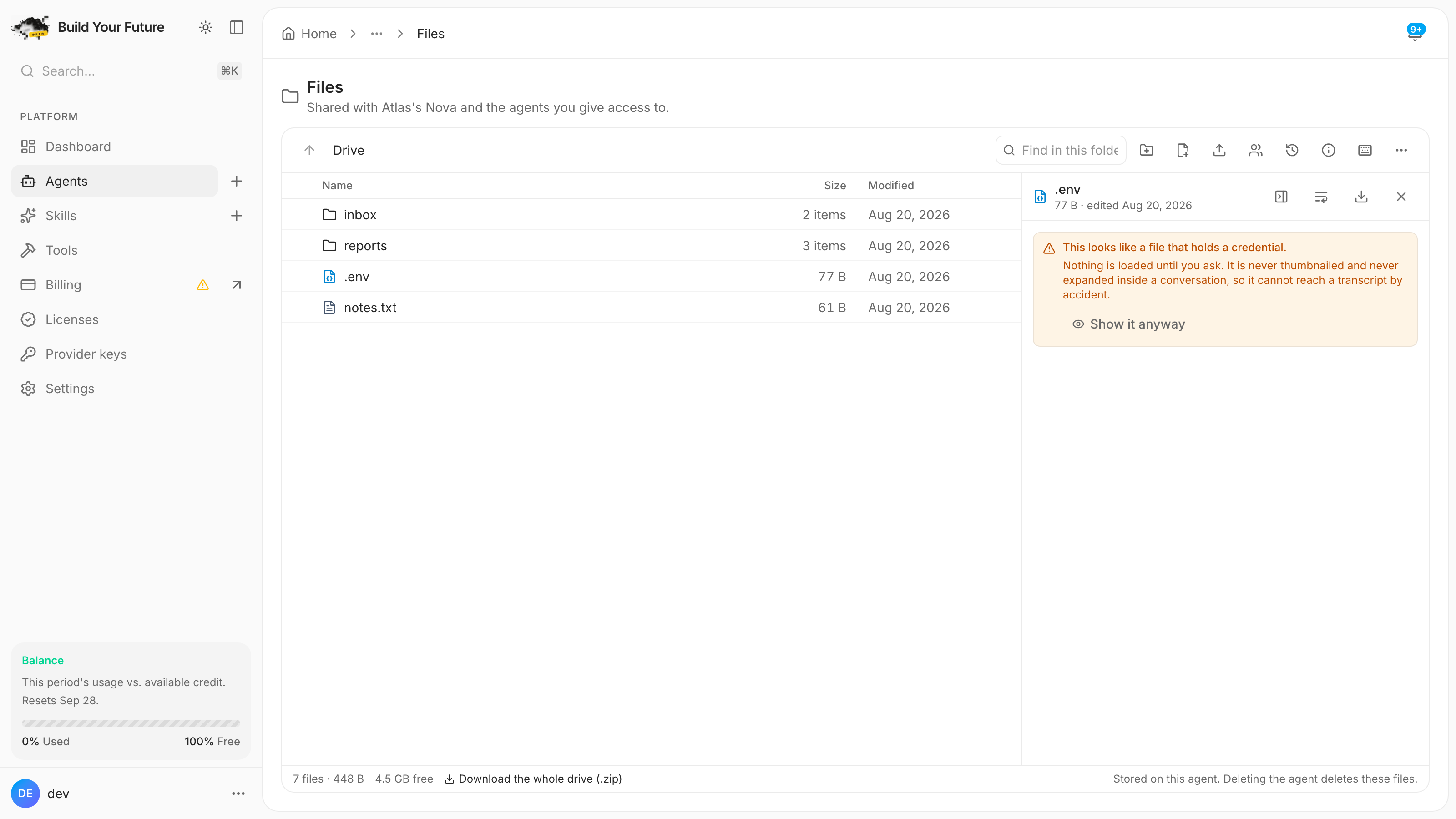
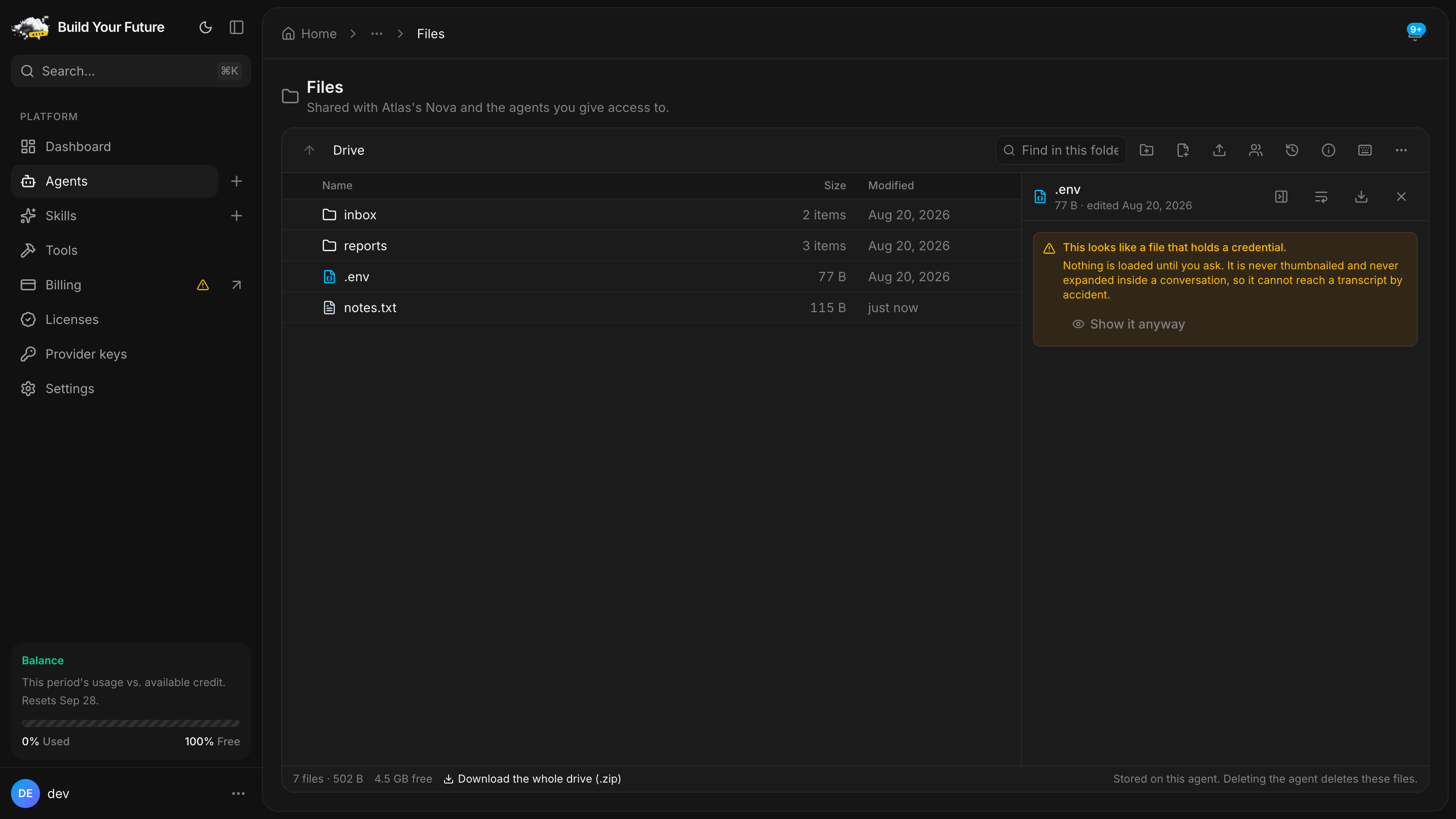
- Files that look like secrets are masked.
.env,.pem,id_rsa,.npmrc,credentialsand friends open with the contents hidden behind a single Show it anyway. That is not security against you. It is protection against a screen share, a screenshot and a person walking past.
Small thing that matters more than it sounds: files with no extension are recognised by name.
Dockerfile, Makefile, README, LICENSE, .gitignore, .bashrc. Those are the most common files in
an agent's working root and every one of them used to open as a hex dump. Related: .key is treated as a
private key, not as a Keynote deck, because server.key is far likelier in an agent's folder than a
slideshow.
Files in the conversation
A file Nova sends you in chat is no longer a download button. It is a card with a real set of actions: Open · Download · Open in Drive · Edit · Copy path · Share link…
Click it and it expands inside the conversation, read-only, inside a frame labelled with the filename so you can always tell file contents from Nova's own words. Read-only is deliberate: a transcript is a record of what was said, and an editable box inside it implies the edit belongs to the message when it actually overwrites a file on disk. Edit raises the full pane instead, with the drive path in the header and a line saying plainly that this changes the file on your Nova's drive.
Open in Drive takes you to the file, in its folder, at a URL you can paste to yourself:
/storage/<agent>?path=reports&file=reports%2Fq3.csv. Browser Back works. So does mailing yourself the
link.
The bytes never ride the message. What the card carries is the name, the size and the path, enough to draw the card honestly, and to go fetch the file the moment somebody asks for it.
Three doors, one folder
The same drive has exactly three ways in, and the only difference between them is who is asking.
| Door | Who | What proves it | How far it reaches |
|---|---|---|---|
| The dashboard and the hosted chat | You | Your session | Everything |
| Another agent in your mesh | A member agent | Its own mesh credential | Only what a grant covers |
| A public link | Anyone | The link itself | One file or folder, inside the link's limits |
Grants are how you let another agent read a folder. Right-click the folder, choose Give an agent access…, pick the agent from your mesh, give it an expiry, and it is done. Grants are read-only unless you tick "Allow the agent to write here too", so the safe version is the default. The other agent needs no setup on its side: it already holds a mesh credential, so the folder simply starts answering when its file tools ask.
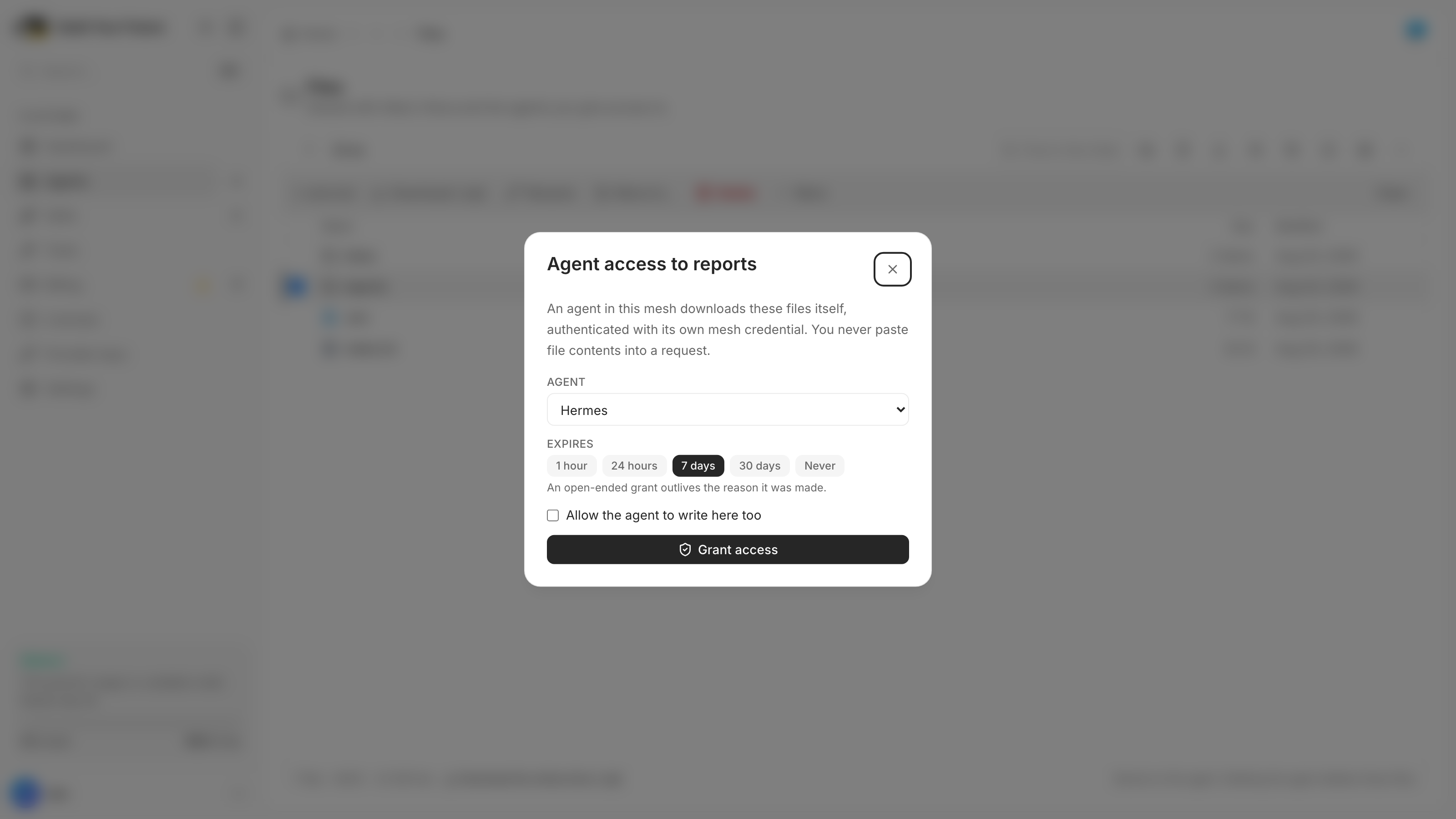
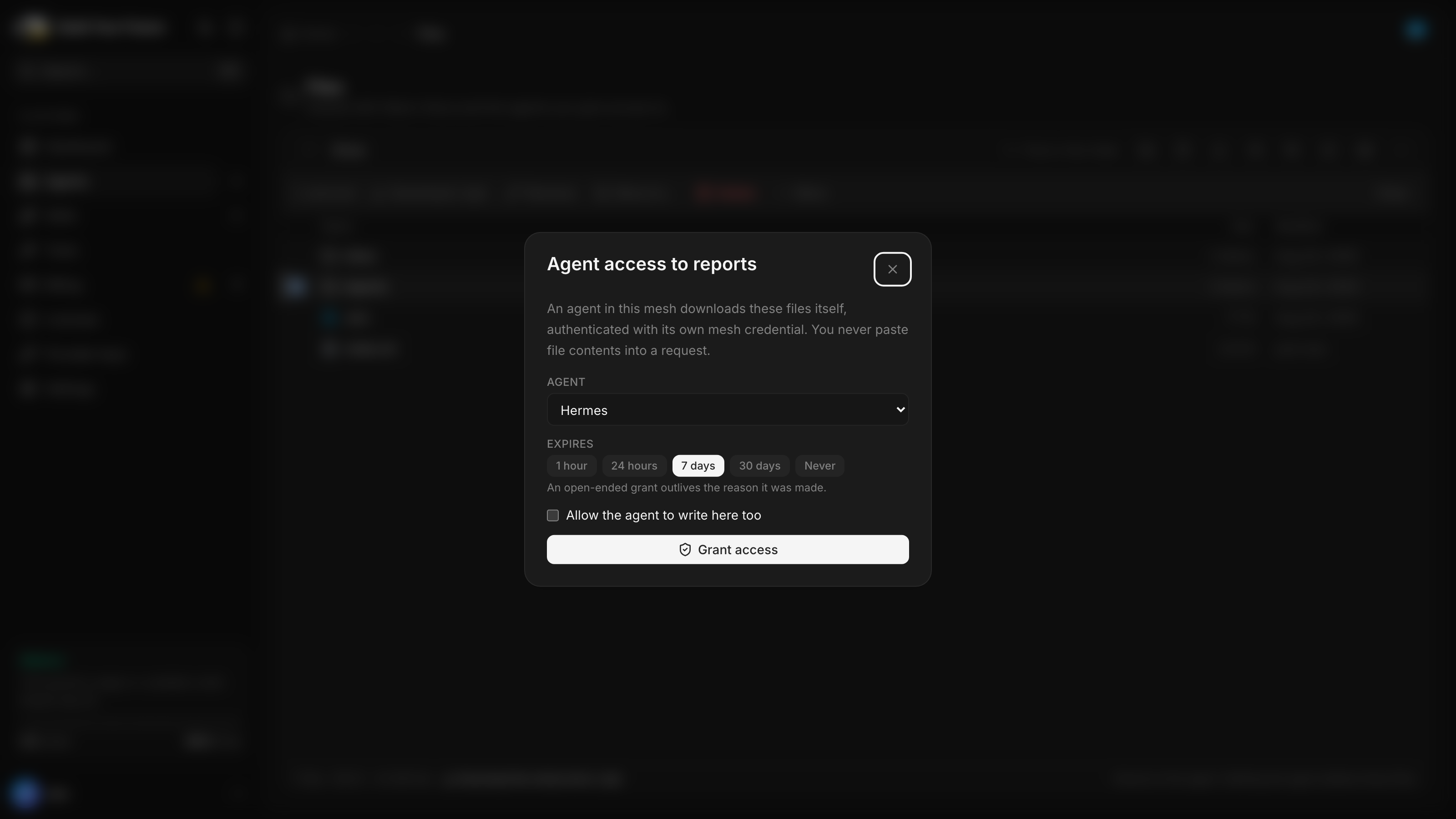
Being in your mesh is not enough on its own. A grant names the agent and the path. Scoping is a prefix
with a separator, so a grant on shared/ covers shared/deep/notes.md and deliberately does not
cover shared-notes/. Listing runs through the same check, so an agent granted one subfolder cannot use
the listing to enumerate its siblings. The same dialog lists every grant that already exists, and removes
them.
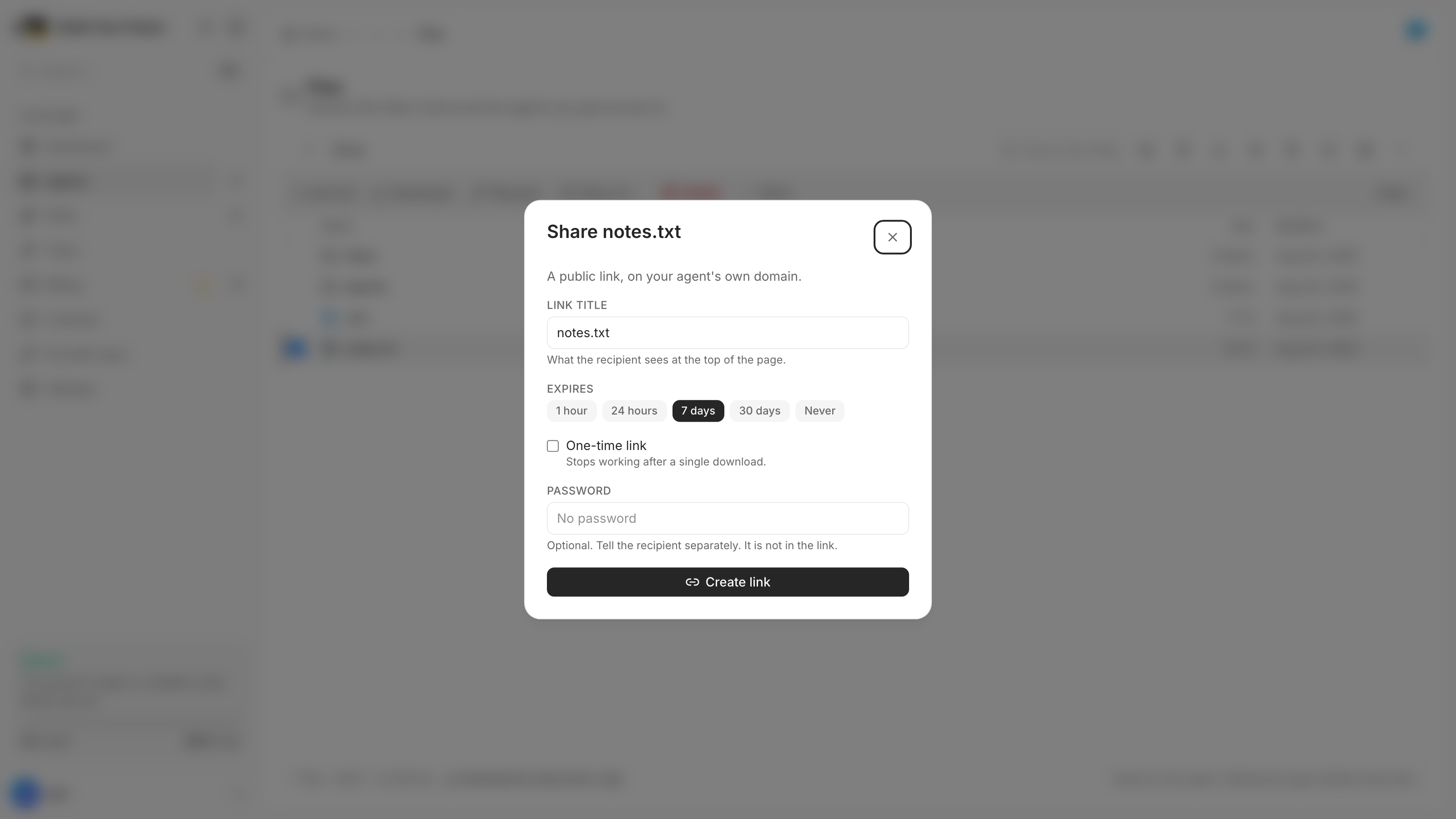
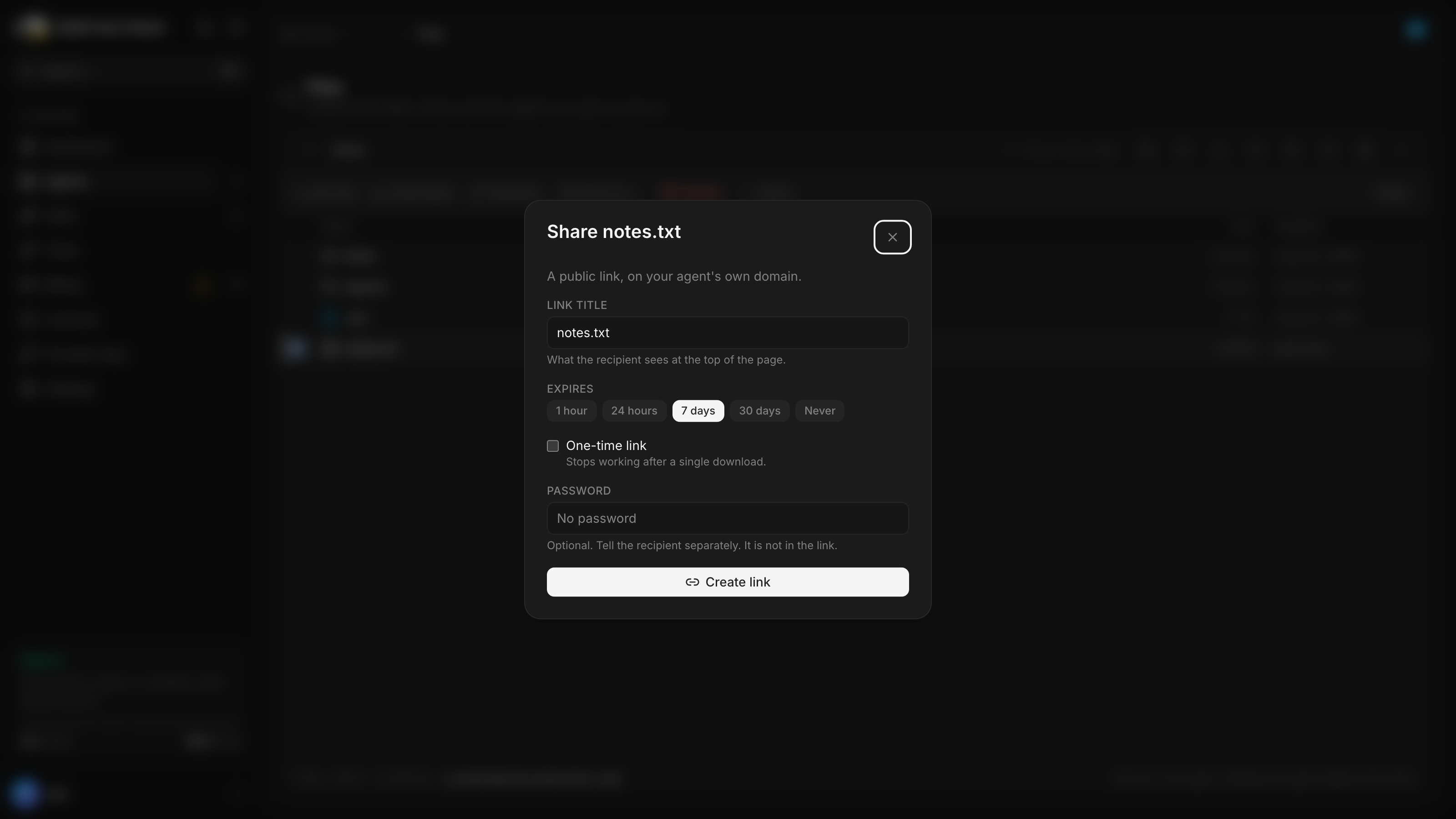
Public links come from Share link… on any file or folder. The dialog has three independent limits, and you can use any combination: Expires, a One-time link tick (good for exactly one download) and a Password. Create it, hit Copy, and the URL is on your clipboard. Answering the password sets a short-lived cookie scoped to that one link, so sharing a whole folder does not ask again per file. Revoking takes effect immediately, and keeps the record, so history can still explain a download that already happened. Deleting a file drops its links with it.
History answers "who changed this"
Every change and every download is written down with who did it: you, Nova, a named member agent, a specific share link, or Telegram. A listing shows you the present. History is the only thing that can answer "who touched this, and did that link I sent get used?"
A folder's history includes everything underneath it. Renaming a folder carries its history along rather than orphaning it.
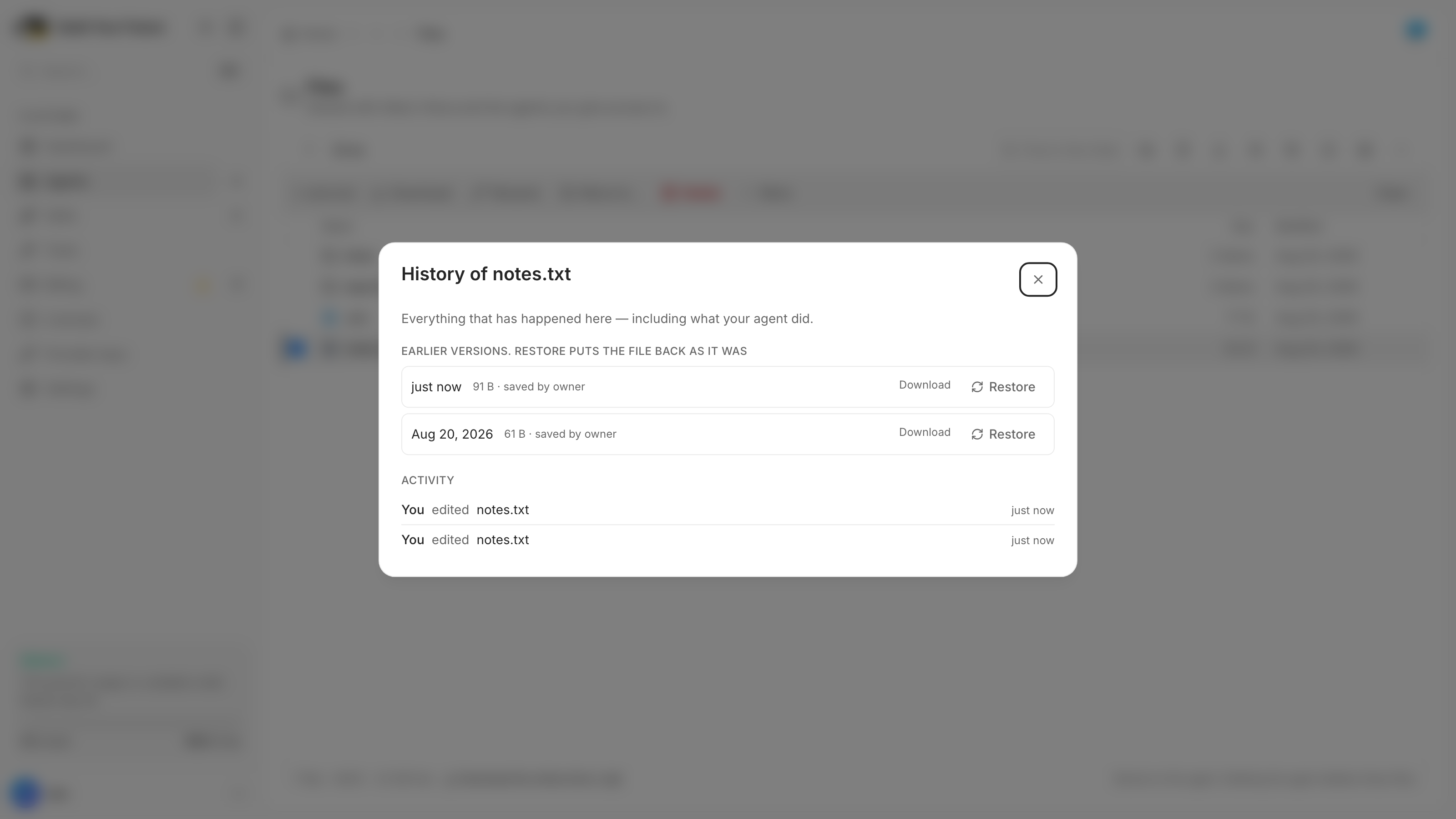
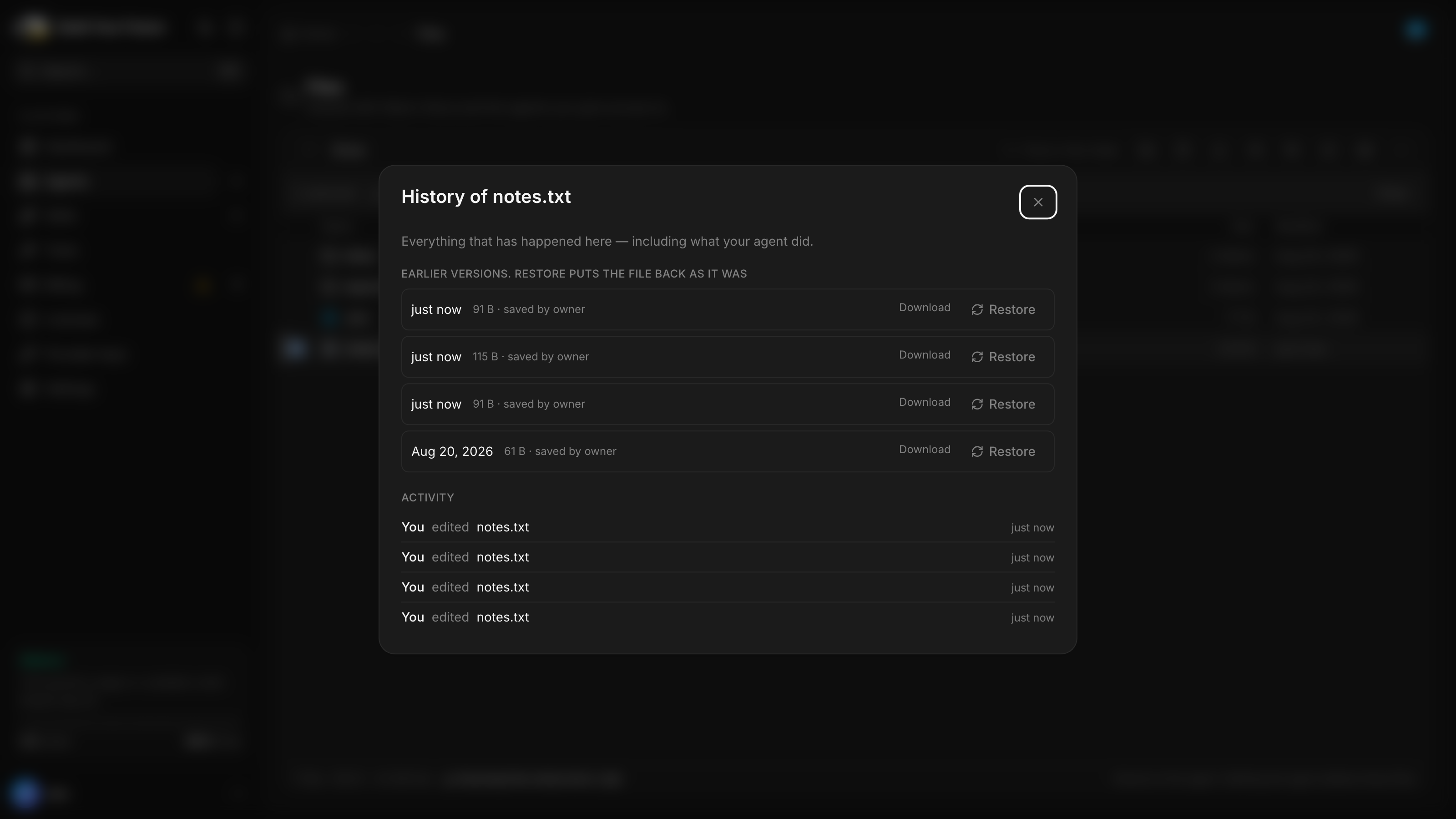
Alongside that, every overwrite or delete of a text file keeps a snapshot, up to 2 MB each and the last ten per path, and Versions… puts any of them back. So the ten most recent states of every text file on your drive are one right-click away, whether it was you or your agent that changed them.
When something is wrong, it says which thing
An agent is a machine that boots, restarts, gets suspended and runs out of room. The explorer names the state instead of showing you a red box with a status code in it:
- "Your agent is starting up." With a retry, because it will be.
- "This agent isn't running, so its files can't be reached."
- "This drive is nearly full." and "This drive is full."
- "Too many requests in a row."
- "This agent's version can't do that yet." Your Nova is behind; update it.
- "This is your agent's drive." The first-run state, which explains that Nova writes here too, rather than pretending this is an empty upload box.
That last one is the tell for the whole feature. This is not your folder that an agent is allowed to touch. It is a shared folder, and the copy says so from the first screen.
How to get the most out of it
Everything above is what it does. This is how to use it well.
Give the drive a shape before you fill it
An agent's working root turns into a junk drawer within a week. Right-click the empty space, New folder, four times:
inbox/for anything arriving from outside,work/for things in progress,out/for anything you intend to share, andref/for the documents you want Nova reading but never rewriting. Then say it once in Nova's instructions: "Write drafts to work/, finished files to out/, and never write to ref/." Nova has real file tools, so this is a rule it can follow, not a wish.Ask for a path, not for a file
"Make me a CSV of Q3" gets you an attachment. "Write the Q3 numbers to out/q3.csv and send me the link" gets you a file that lives somewhere, that you can edit, that keeps a history, and that you can ask about next month. Naming the path in the request is the single highest-leverage habit here, and it costs you four words.
Let Nova hand work to other agents by grant, not by paste
When one agent needs what another produced, do not move the text through a conversation. Put the file in a folder and grant the other agent that folder: right-click, Give an agent access…, pick it. From then on the file is the interface. Update it and the other agent sees the update. Grant the folder, not the file, and keep the folder narrow: a grant on
shared/is a grant on everything inside it, forever, until you remove it.Use one-time links for anything you would not post publicly
A share link with no limits is a public URL. Sending a client a quote? Tick One-time link and set Expires to next week. Dropping something into a group chat? Add a Password as well. Then check History afterwards to see whether it was actually opened. That is often the answer you wanted anyway.
Tidy in one pass, not one file at a time
The fastest cleanup is
/to filter the folder down to what you are after,⌘Ato take all of it,⌘X, then click into the destination and⌘V. One request moves the lot, and one⌘Zputs it back if you aimed wrong. Press?if you forget a key. Nova's file tools get more accurate as the tree gets more predictable, so this is maintenance with a payoff.Read the file before you ask about the file
When Nova's answer about a document looks wrong, open the document in the pane. Half the time the file is not what you thought: a CSV with a header row missing, a markdown file that got overwritten, a log that stopped three days ago. Looking takes six seconds and beats three rounds of asking.
Take the backup before you need it
The footer has Download the whole drive (.zip). It streams, it needs nothing installed, and it is the same export the delete dialog offers you. Pull one now, while nothing is wrong. The files live on the agent. That is what makes them fast, and what makes a backup worth having.
Three ways people are using it
The dropbox that is not a dropbox. Point Telegram uploads and any channel attachments at inbox/,
then tell Nova to sort inbox/ into the other folders on a schedule. You get a working intake pipeline
out of a folder convention and one recurring prompt.
The living document. Keep one markdown file, ref/context.md, with the facts about your business
that every answer should respect. Edit it in the pane whenever something changes. Ask Nova to read it
before anything consequential. It is version-controlled by the drive's own history, so you can see what
you changed and when.
The handoff folder. One folder per job, granted to exactly the agents on that job, deleted when the job is done. The grant list is the project's access control, and History is its audit trail.
A habit that pays immediately
After any bulk operation, glance at the outcome line. "Moved 40" and "Moved 37 · 3 failed" look similar at a glance and mean very different things. The second one hands you the three names and a Retry button, but only if you look.
Every number in this post was measured
The file explorer is the kind of feature that looks like an afternoon and is not. v0.1 shipped in four stages, each one finished not when the code worked but when it had survived a panel of critics it did not write itself: security, accessibility, interaction and regressions reviewed separately.
That is where the specifics came from. The 1.06:1 selection tint was measured, not noticed. The
.key-is-not-Keynote call came from asking which of the two files is likelier in an agent's home
directory. The ⌘Z-after-Tab rule came from finding out what setting a textarea's value does to the
browser's own undo stack. Every rule in this post is somewhere in a test, as a table.
Open the Files tab on your Nova
Same folder your agent writes to. Open it, edit it in place, and stop keeping two copies of the truth.
Related
- Nova just got six new powers, and it never picks the wrong one
One agent runs all your agents. It remembers you, counts instead of guessing, works after you close the tab, and cannot spend past your limit.
- How to use Nova: models, messages, files and spending
A plain guide to Nova. Pick a model that fits, write messages Nova understands, share files, run routines, control spending, and fix common problems.
Also available as raw markdown.