
How to use Nova: models, messages, files and spending
A plain guide to Nova. Pick a model that fits, write messages Nova understands, share files, run routines, control spending, and fix common problems.
This guide explains how to get good results from Nova. It uses simple words and short sentences, so you can also read it with a translation tool. Every button name in quotes is the exact text you see in the app.
What Nova is
Nova is a coordinator. You talk to Nova, and Nova hands work to the agents in its team. We call those agents members. Nova reads the answers from the members and gives you one reply.
A Nova can also work on its own. It has a drive for files, and it can remember facts and run jobs on a timer if you turn those abilities on.
Use Nova when a job needs more than one agent, when you want one place for all your chats, or when you want Nova to plan the steps for you.
Talk to a member directly when the job is simple and only that member can do it. A direct chat is faster because Nova does not need to pass the message on. Open the member from "Agents" in the sidebar. Its page has its own ways to reach it, such as the "Console" tab or Telegram.
Pick the right model
The model is the AI that writes Nova's answers. It has the biggest effect on quality. If Nova often misunderstands you, check the model first.
Where to change Nova's model
- Open your Nova from "Agents" in the sidebar.
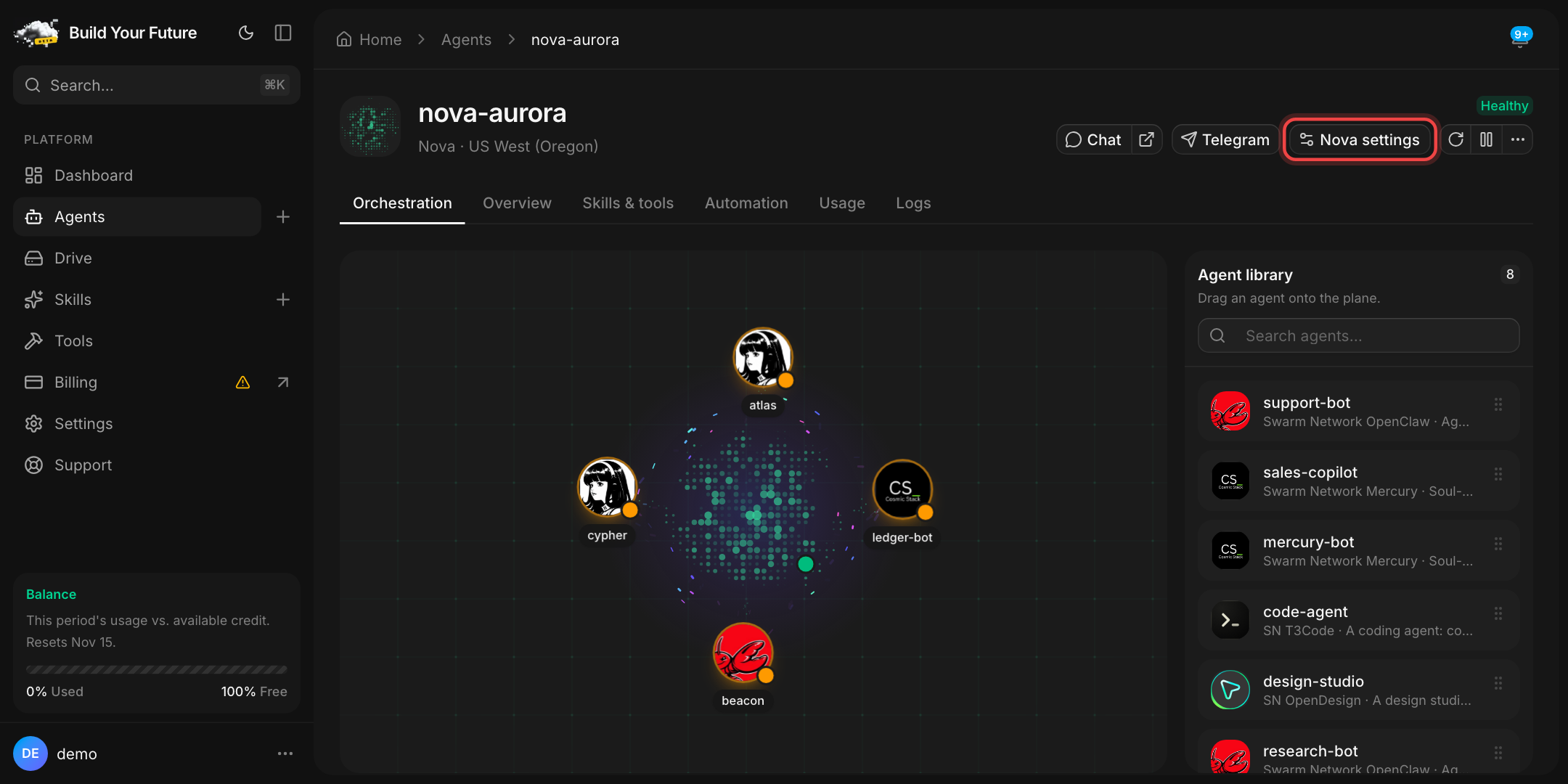
- In the top right of the Nova page, click "Nova settings". On a narrow screen, such as a phone, the button shows only its sliders icon. The "Settings" link in the left sidebar is a different page: it holds your account settings, not Nova's.
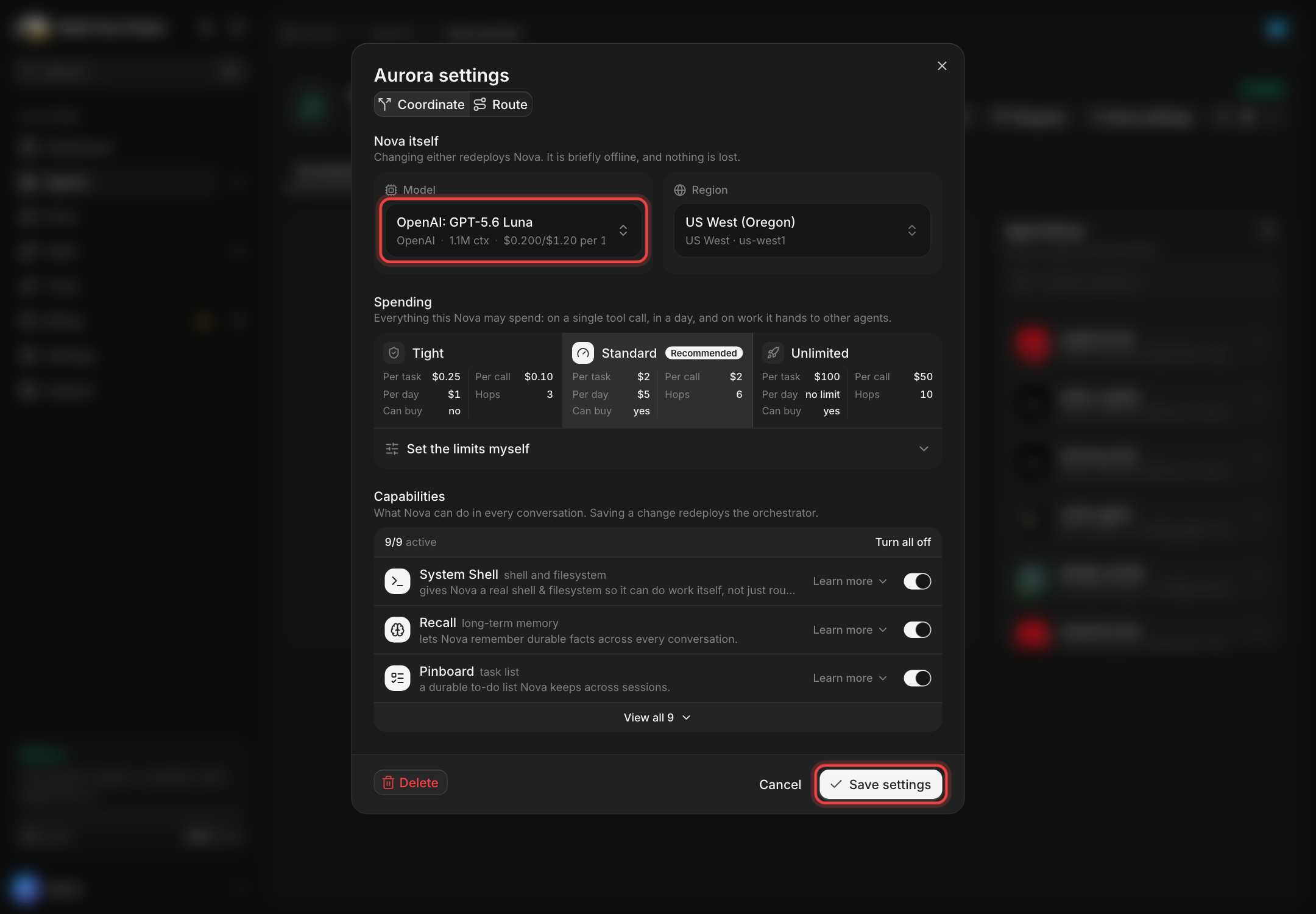
- The settings window opens. Under "Nova itself", click the "Model" field.
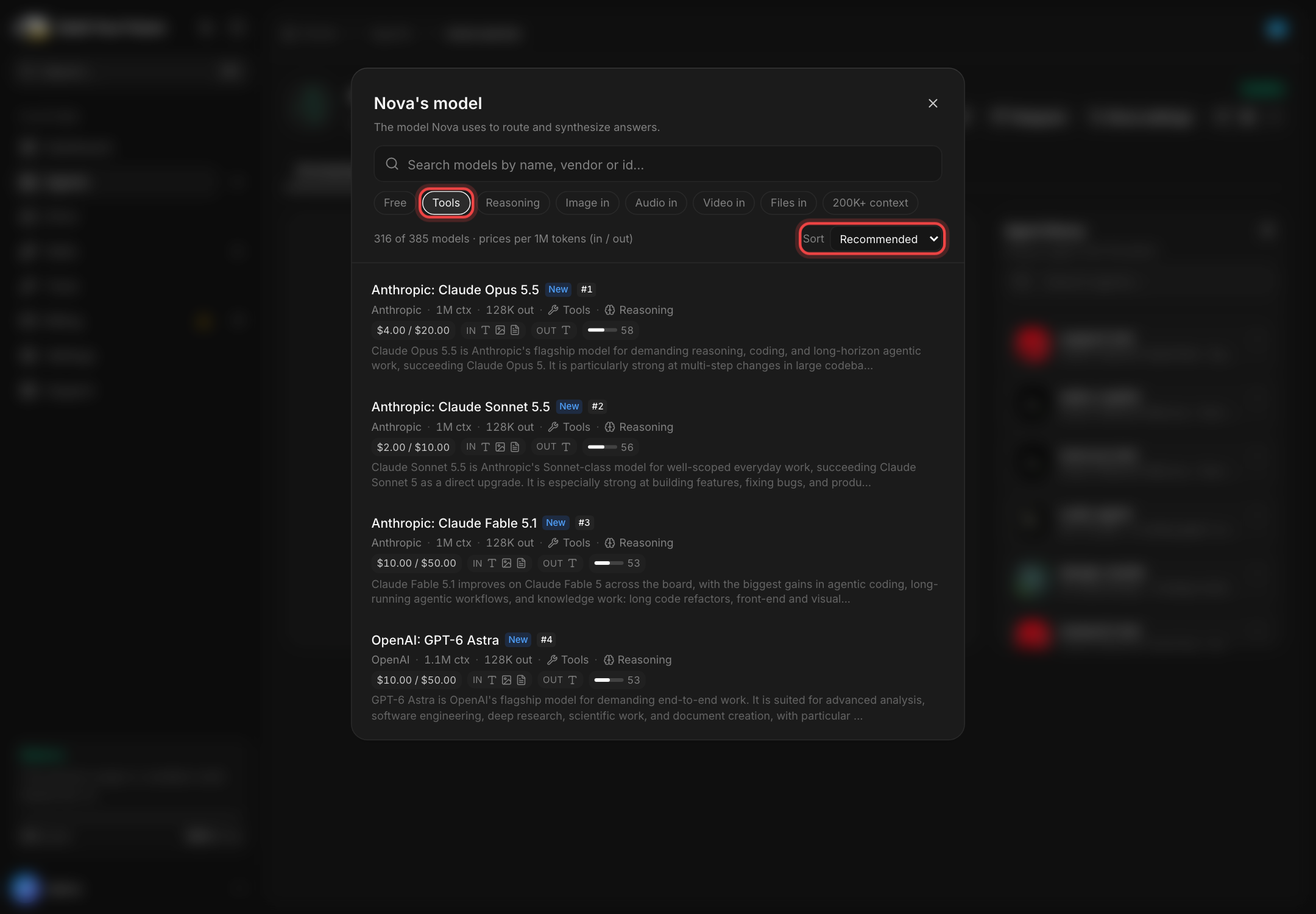
- In the model list, turn on the "Tools" filter. It shows only models that can use tools. Nova needs tools to send work to members and to read and write files.
- Leave "Sort" on "Recommended". Models with the highest quality score come first.
- Pick a model. If the model can give mixed results, a short warning appears under the "Model" field. It is only a warning, and you can still save.
- Press "Save settings". Nothing changes until you press it.
Changing the model restarts Nova. It is offline for a short time, and nothing is lost.
Why free models and routers give mixed results
Some choices look cheap but cause problems:
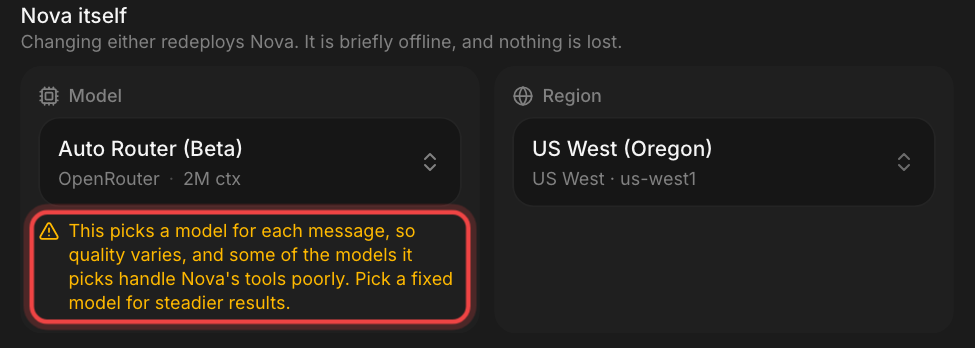
- A router picks a model for you. "Auto Router (Beta)" is the default when you create a Nova. It is a fine start, but it picks a model for each request, and a free router works in a similar way. So one answer may come from a strong model and the next from a weak one, and the quality and style can change from message to message. If answers feel uneven, choose one fixed model.
- Some models cannot use tools. A model without tools cannot ask your members for help or open your files. The "Tools" filter hides these models.
- Free models are busy. Providers often limit how much a free model can be used. At busy times a request can fail or wait. A free model can also be removed from the list without warning.
When you pick one of these, the warning under the "Model" field tells you why. For a router it says: "This picks a model for each message, so quality varies, and some of the models it picks handle Nova's tools poorly. Pick a fixed model for steadier results."
A paid model with tools gives the most consistent results. The list shows each model's price, so you can compare before you choose.
What a model costs
You pay for the model by use. Each message and each answer is counted in tokens (small pieces of text). A long message, a long answer or a big pasted text costs more. Strong models cost more per token than small ones. A small, cheap model with tools can be a good choice for simple daily work.
Change a member's model
Each member has its own model. Nova's model does not change it.
- Open the member from "Agents".
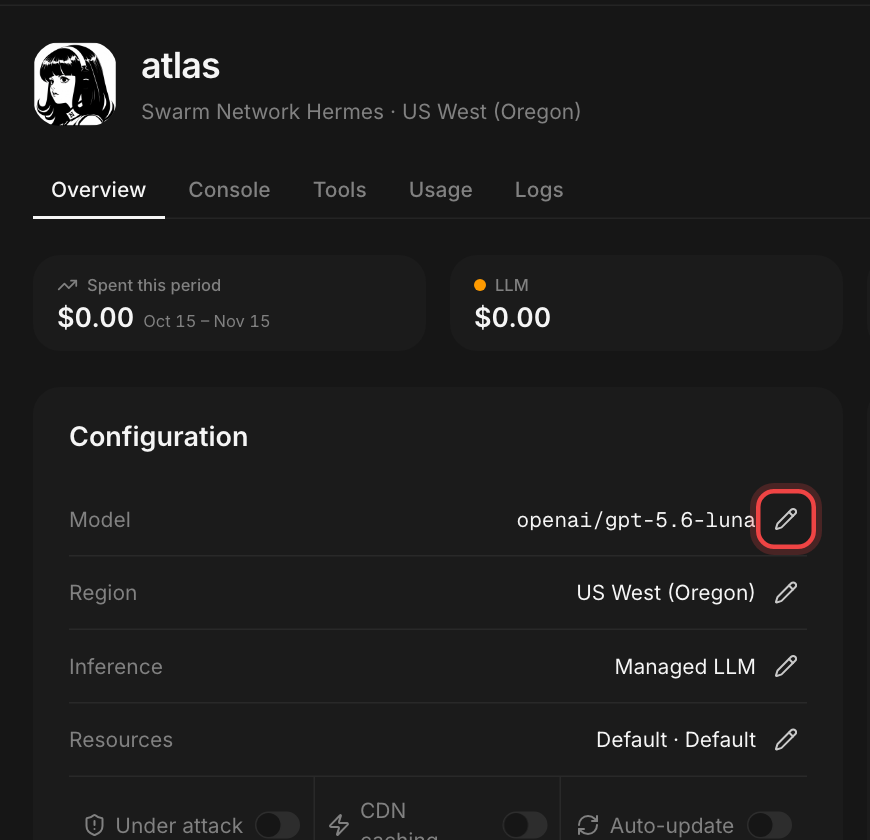
- On the "Overview" tab, find the "Configuration" card.
- Click the pencil icon next to "Model". When you point at it, it says "Change model".
- Pick a model and press "Change model". The member restarts with the new model.
How to ask
Nova reads your message the way you write it. These habits help a lot:
- One task per message. "Find three hotels in Osaka under 15,000 yen" works better than five questions in one message.
- Say what result you want. For example: "Give me a table with name, price and link." Or: "Write a short email I can send today."
- Write in your own language. You do not need to write in English. If Nova answers in another language, tell it once: "Always reply in Japanese." To make Nova keep this, open the "Automation" tab on your Nova, choose "Memory", type the rule, and press "Remember". The "Automation" tab appears when "Recall", "Pinboard" or "Routine" is on in Nova's settings, and "Memory" needs "Recall".
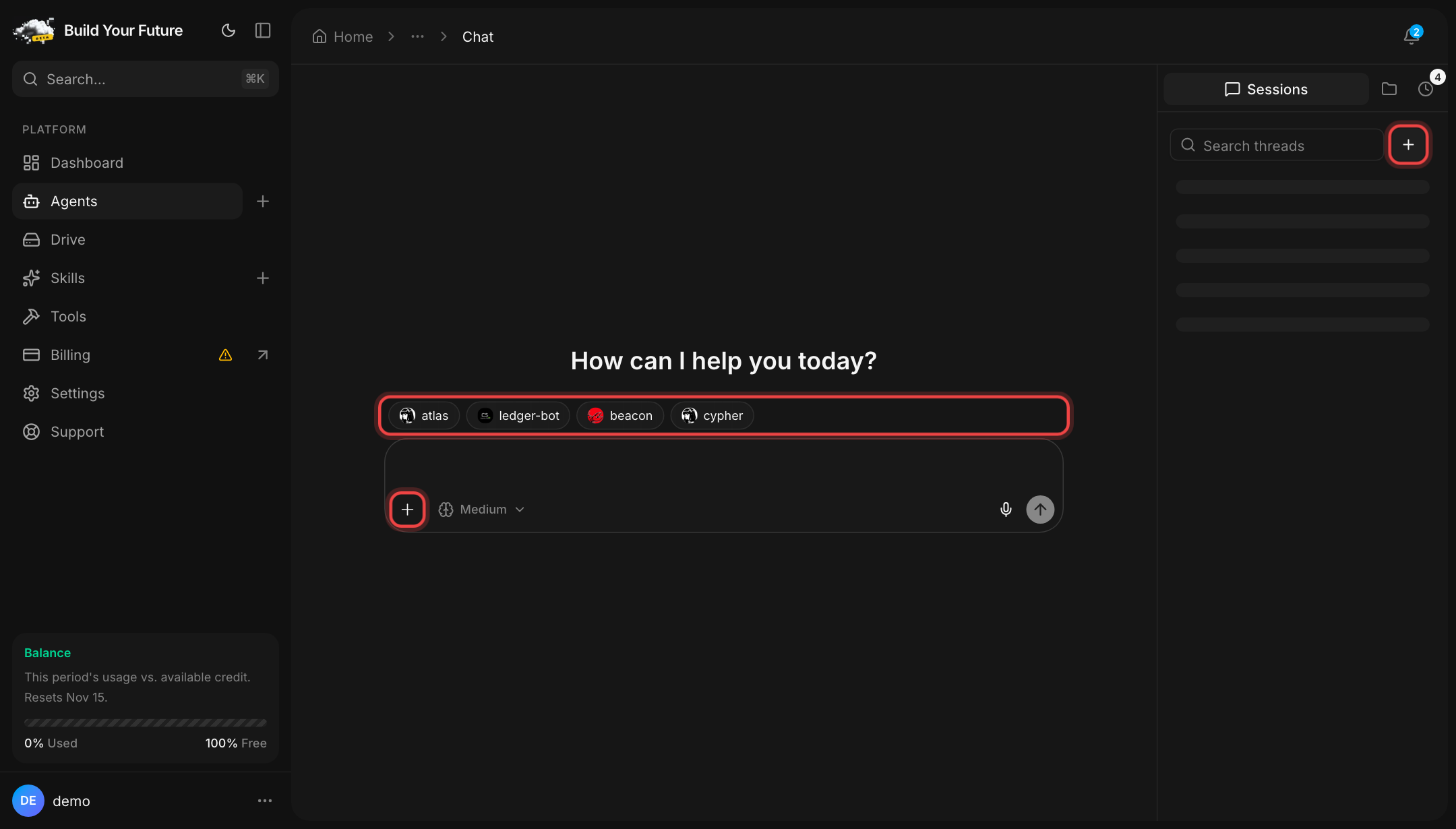
- Say which member should do the work. Above the message box there is one button for each member.
Click a name to add it to your message, or type
@and pick a member. - Ask for short answers when you want them. "Answer in three lines" or "Only the final list, please." Short answers are also cheaper.
- Start a new chat for a new topic. Click the "+" next to "Search threads" in the chat sidebar. Also start a new chat after an error. A long chat full of old topics and failed steps confuses the model.
Files: Drive and attachments
Each Nova has a drive. Nova saves its files there, and you can open, upload and share them. Open it from "Drive" in the sidebar, or from the folder icon in the chat sidebar.
Upload instead of pasting
One chat message can hold up to 8,000 characters. For a long document, a spreadsheet or a log file, upload the file instead and ask Nova to read it. Nova then reads only what it needs, which is more accurate and costs less.
Attachments and bigger files
The "+" inside the message box adds files to a message. Each file can be up to 4 MB, and you can add up to 6 files. All files in one message together must stay under about 9 MB. Files you send to Nova are saved in the "inbox" folder of the drive, so you can find them later.
Upload bigger files in Drive. One file can be up to 50 MB. Then tell Nova the file name.
Share a file
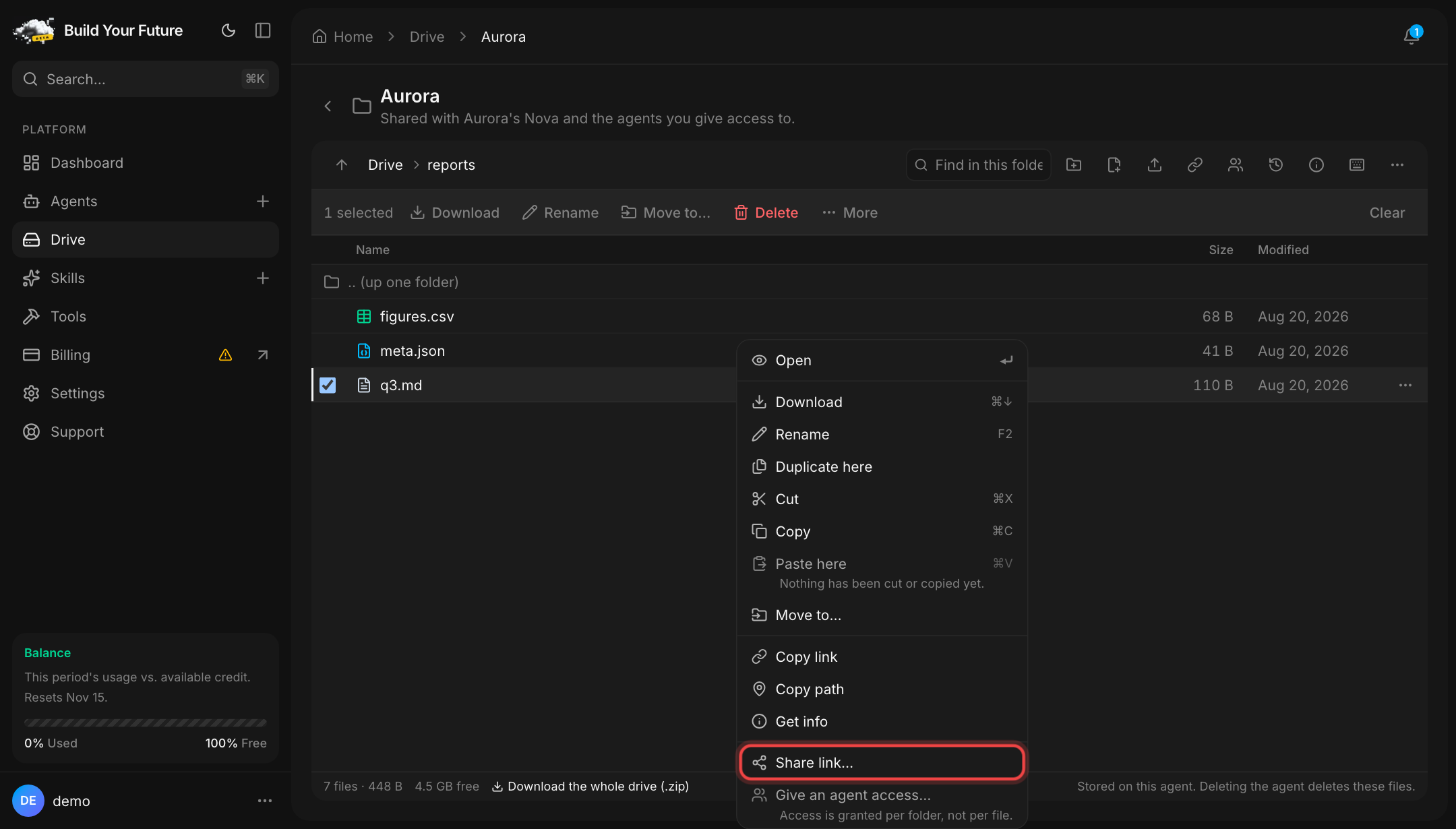
Right-click a file in Drive and choose "Share link…". You can set when the link expires, make it work only once, or add a password. Then press "Create link" and "Copy". If you add a password, send it in a different message from the link.
HTML files download. When someone opens a share link to an .html file, the browser downloads the
file. It does not show it as a web page. This is a safety rule, and the same is true for .svg files.
To show a page to someone, ask Nova for a PDF or an image, or send the HTML file and let them open it on
their computer.
Routines and long jobs
A routine is a message that Nova runs on a timer. For example: "Every Monday at 9:00 Japan time, send me a short summary of last week's sales file." Always say your time zone.
The easy way is to ask Nova in the chat. You can also open the clock icon in the chat sidebar, or the "Schedules" section of the "Automation" tab. The "Routine" ability must be on in Nova's settings.
The schedule itself runs in UTC (world time), and the run history shows your local time. After Nova makes the routine, open it and check "Next run". It shows your local time, so you can see if the time is right.
Each run ends with one of these results:
| Result | What it means |
|---|---|
| ran ok | The run finished normally. |
| cut off | Nova stopped the run before it was done. It still replied, and the reply says what was not finished. |
| failed | The run did not work. The error is shown in red. |
| ended | Nova sent a result this page does not know yet. Open the run to see it. |
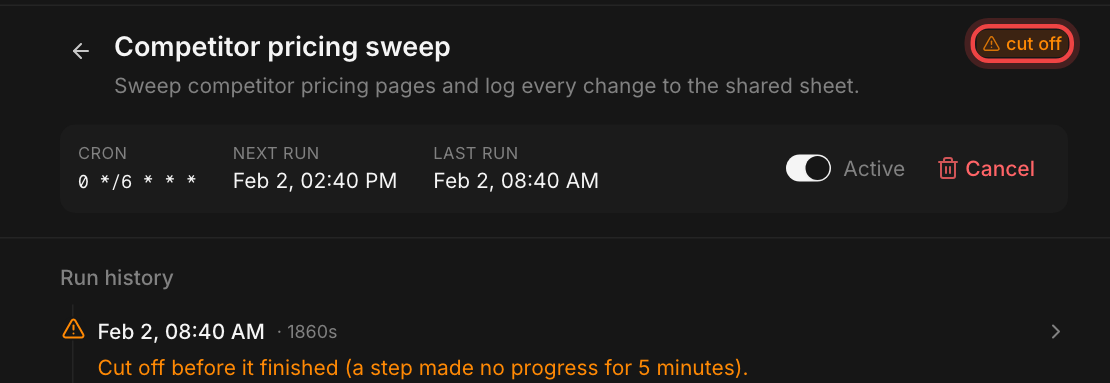
The run history also shows the start of each run's answer, with its formatting (such as bold text and lists). Click a run to read all of it.
If a run is cut off, read the reason in the run history. If it happens often because the job is big, split it into smaller routines, or ask Nova to save its progress in a file and continue from that file next time.
Long jobs in chat
You can close the chat while Nova works. When you come back, the answer appears in the chat. When Nova asks a member for help, it waits about two minutes for that member, or longer if the member says its jobs take longer (up to 30 minutes). For very long work, ask the member to save the result in the drive, and ask Nova to check the file later.
Stop a run
While Nova is writing, the send button becomes a square stop button. Press it to stop the run.
You can also type your next message while Nova works. It waits in a queue and is sent when Nova finishes. To send it sooner, press "Interrupt" on the queued message: Nova stops the current answer and then reads your message. On newer Novas you may also see "Steer", which adds your message to the answer Nova is writing now.
Paid tools and spending
Toolbelt and approvals
Some tools cost money per use, such as web search or market data. Nova can use them when the "Toolbelt" ability is on in Nova's settings. Each call is charged to your balance.
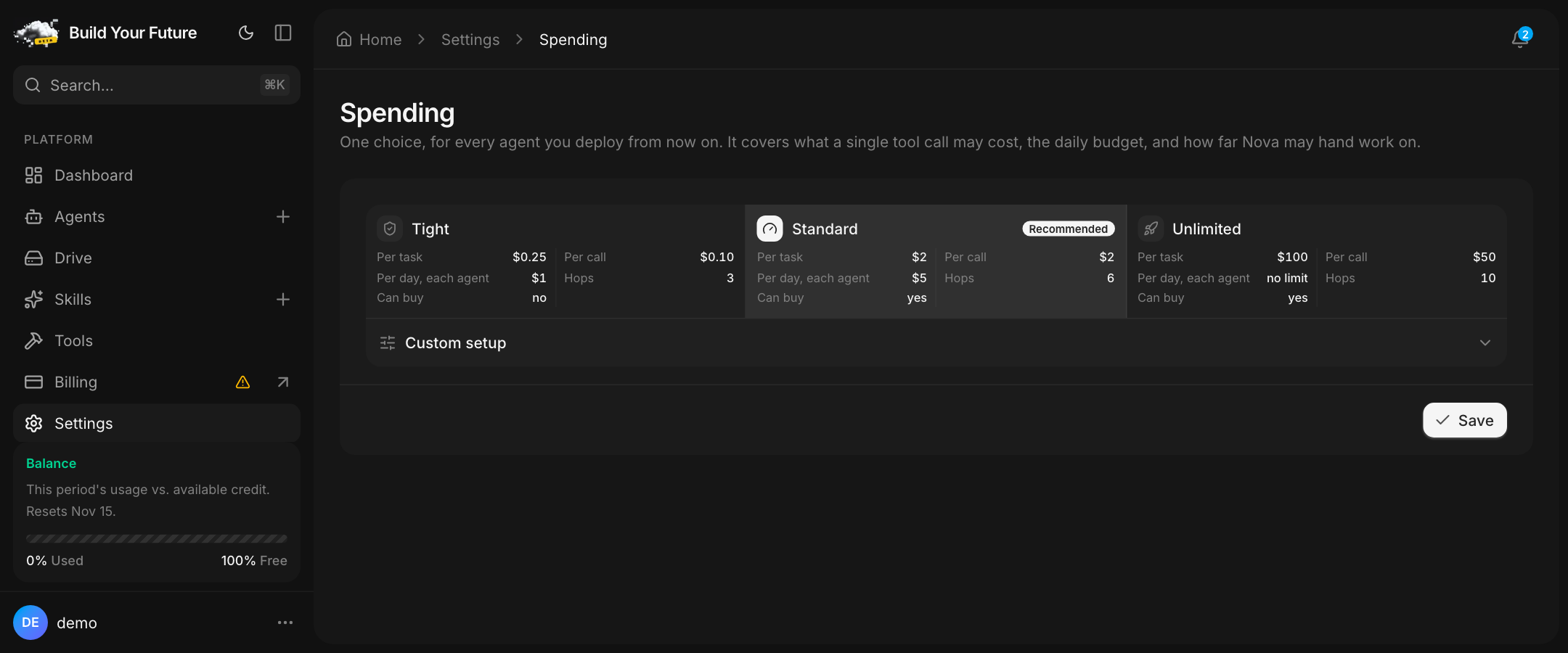
Each preset below sets a limit per call, and "Tight" and "Standard" also set a limit per day. A call above a limit is refused. With "Tight", Nova also stops and asks you before a call that costs more than $0.05. You then see a banner, and the request is listed in "Tools" > "Approvals". Press "Approve" or "Decline". Until you answer, the agent waits. A request you do not answer expires after a while.
Safety presets
There are three ready-made sets of spending limits: "Tight", "Standard" and "Unlimited". "Standard" is recommended. Set your default for new agents in "Settings" > "Spending". To change one Nova, use the "Spending" section of its settings window.
Where to see what you spend
"Billing" in the sidebar shows your balance and a statement. Each agent's "Usage" tab shows its own costs.
There are two main kinds of cost:
- Hosting ("Compute & storage" on your statement) is the cost of keeping the agent running. You pay it while the agent is on, even when nobody is talking to it.
- Model use ("LLM" on your statement) is the cost of the messages and answers. It grows with use.
Paid tools are a third line on your statement, "Tools", when you use them.
Pause or delete
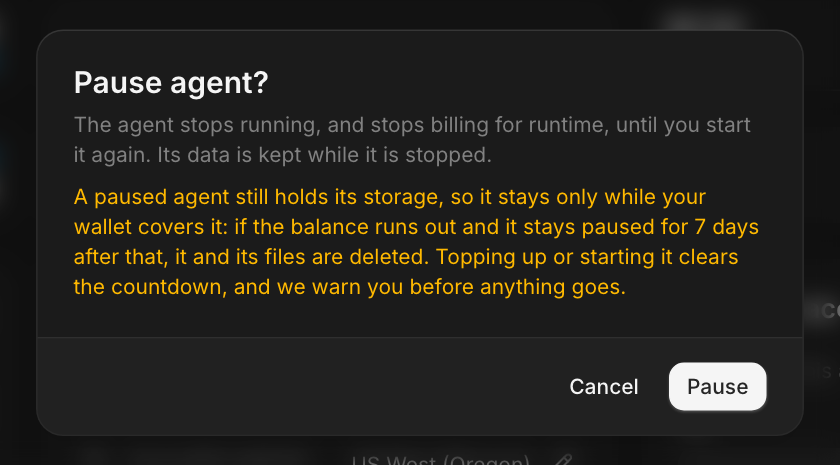
Pause stops the agent and its runtime charge. Its files and settings are kept. To pause, use the pause icon on the agent's page and confirm with "Pause". When you pause Nova, its members keep running and keep costing money. Pause them one by one if you want to stop them too. While Nova is paused, you cannot chat with it or open its drive, and its routines do not run.
A paused agent is not kept forever. If your balance runs out and the agent stays paused, it is deleted with its files after the grace period of your plan:
| Plan | Grace period |
|---|---|
| Pay as you go | 7 days |
| Hobby | 7 days |
| Pro | 14 days |
| Enterprise | 30 days |
Adding money to your balance stops the countdown. To start an agent again, you need at least $1 in your balance. We warn you before anything is deleted.
Delete removes the agent and its files for good. Download anything you need first. In Drive, "Download the whole drive (.zip)" saves every file at once.
Troubleshooting
Nova does not understand me.
- Check Nova's model. If it is a router or a free model, choose one fixed paid model with "Tools".
- Start a new chat.
- Write one task, and say what result you want.
- Tell Nova once which language to use.
- If the input is long, upload it as a file instead of pasting it.
A tool call failed.
- Check that the model can use tools (the "Tools" filter).
- Check the limits in the "Spending" section of Nova's settings. A call above the limit per call or per day is refused. "Tight" also cannot read web pages. If you use "Tight", look at "Tools" > "Approvals": the agent may be waiting for you.
- Check your balance in "Billing".
- If a member did not answer, open the member's page and check that it is running. Then ask again in a new chat.
An update failed.
Usually the agent keeps running on its previous version, and nothing is lost.
- Open the agent. A note says that the update to the new version didn't finish, and that the agent still runs its previous version. A yellow "update failed" label is next to the status.
- Click "See where it stopped →" if you want to see the log of the update.
- Press the yellow "Retry update" button at the top of the page, then press "Retry update" again in the window that opens. If a newer version came out since, the button says "Update to latest" instead, and the button in the window says "Update". If the rebuild was not moving the agent to a new version (for example, you changed the model and it already had the newest version), the label says "rebuild failed". The button then says "Redeploy", or "Update to latest" if a newer version is waiting.
- If it fails again, open a support ticket.
If a network problem on our side stopped the update, we build it once more on our own. The note tells you when that second try also failed.
If the agent is not running at all, the page says "This deploy failed" instead. Press the red retry icon at the top of the page (when you point at it, it says "Retry deploy"), or choose "Retry deploy" in the "…" menu. Then press "Retry" in the window that opens. Click "View logs →" to see what happened.
I want results by email.
Nova does not send email on its own. To get results outside the app, connect Telegram with the "Telegram" button on Nova's page, next to "Nova settings". Send the bot one message first. Routine results are then sent to your Telegram chat too. If you need email, you can use your own webhook that sends email (for example, from an automation service you use): give its address to Nova or to a member and ask it to send the result there. Test it with one message first.
Where to get help.
Click "Support" in the sidebar, then "New ticket". Say which agent it is, what you asked, and what happened. A screenshot helps.
Related
- BYF-Drive: the same folder your agent works in, now open to you
Nova writes files to a real disk. Now you open, edit, rename and share them in the same folder. No downloads, no second copy, nothing drifting out of date.
- A direct line to our team, built into your dashboard
Support is now part of Build Your Future. Open a ticket in two clicks, reach a person who can help, and help shape what we build next.
- Nova just got six new powers, and it never picks the wrong one
One agent runs all your agents. It remembers you, counts instead of guessing, works after you close the tab, and cannot spend past your limit.
Also available as raw markdown.